
সূচিপত্রContents
শুরু করার আগেBefore you start#
একুশে নেক্সট একটি বাংলা কিবোর্ড। আপনি ইংরেজি অক্ষরে উচ্চারণ অনুযায়ী লেখেন (যেমন amar sonar bangla), আর একুশে সেটাকে সঠিক বানানে বাংলা করে দেয় (আমার সোনার বাংলা)। এর নিজস্ব অভিধান আছে, যেটা বাংলা একাডেমির প্রমিত বানান আগে দেখায়। সবকিছু আপনার কম্পিউটারেই চলে; ইন্টারনেট লাগে না, আর আপনার লেখা কোথাও পাঠানো হয় না।
Ekushe Next is a Bangla keyboard. You type the way a word sounds, in English letters (say amar sonar bangla), and Ekushe writes it in correctly spelled Bangla (আমার সোনার বাংলা). It has its own dictionary, which puts the Bangla Academy standard spelling first. Everything runs on your own computer: no internet is needed and nothing you type is sent anywhere.
যা যা লাগবেWhat you need
| সিস্টেমSystem | কোথায় কাজ করেWhere it works | |||
|---|---|---|---|---|
| Windows | Windows 10 বা 11, ৬৪-বিট। অ্যাডমিন অধিকার লাগে না। | Windows 10 or 11, 64-bit. No admin rights needed. | প্রায় সব অ্যাপে: Word, Chrome, Edge, Firefox, WhatsApp, Notepad, ইমেইল। | Almost every app: Word, Chrome, Edge, Firefox, WhatsApp, Notepad, email. |
| macOS | macOS 11 (Big Sur) বা পরের সংস্করণ। Apple silicon (M1 থেকে) আর Intel দুটোতেই চলে। | macOS 11 (Big Sur) or later, on Apple silicon (M1 and newer) and Intel. | যে অ্যাপে macOS-এর ইনপুট সোর্স কাজ করে, সব জায়গায়। | Any app that accepts macOS input sources. |
| Linux | ৬৪-বিট, IBus সহ। Ubuntu, Debian, Mint, Pop!_OS, Fedora আর GNOME-এ IBus আগে থেকেই থাকে; KDE-তেও চলে। | 64-bit, with IBus. Ubuntu, Debian, Mint, Pop!_OS, Fedora and GNOME already have it; it also works on KDE. | GTK আর Qt অ্যাপ, ব্রাউজার, LibreOffice ইত্যাদি। | GTK and Qt apps, browsers, LibreOffice and so on. |
একুশে নেক্সট এখন বিটা পর্যায়ে। নিচের নির্দেশনা সর্বশেষ সংস্করণ (v0.1.0-beta.10) অনুযায়ী লেখা। কোথাও কিছু না মিললে GitHub-এ জানান।
Ekushe Next is in beta. This guide follows the latest version (v0.1.0-beta.10). If something here doesn’t match what you see, please tell us on GitHub.
ইনস্টলInstall#
ফাইলগুলো পাবেন এই সাইটের ডাউনলোড অংশে, অথবা সরাসরি GitHub-এর রিলিজ পাতায়। সেখানে সব সময় সর্বশেষ সংস্করণই থাকে। আপনার কম্পিউটারের জন্য কোন ফাইল, তা নিচে দেওয়া আছে।
Get the files from the download section of this site, or straight from the releases page on GitHub; it always has the newest version. Which file you need is listed below.
Windows
| ফাইলFile | কখন নেবেনWhen to use it |
|---|---|
Ekushe-Setup.exe | বেশিরভাগ মানুষের জন্য এটাই। আপনার ইউজার অ্যাকাউন্টে ইনস্টল হয়, উইন্ডোজের সাথে চালু হয়, Start Menu-তে শর্টকাট বসায়।The one most people want. Installs for your user account, starts with Windows and adds a Start Menu shortcut. |
Ekushe-Setup.zip | ব্রাউজার .exe ডাউনলোড আটকে দিলে। ভেতরে একই Setup.exe।If your browser blocks the .exe. The same Setup.exe, zipped. |
Ekushe-Portable.exe | ইনস্টল না করে চালাতে চাইলে, যেমন অফিসের কম্পিউটারে বা পেনড্রাইভে। নিজে থেকে উইন্ডোজের সাথে চালু হয় না।To run it without installing, say on a work computer or from a USB stick. It doesn’t start with Windows on its own. |
Ekushe-Extras-x64.zip | শুধু পরীক্ষকদের জন্য: পরীক্ষামূলক উইন্ডোজ ইনপুট মেথড (ekushe_tsf.dll) আর কমান্ড-লাইন টুল। সাধারণ ব্যবহারে লাগে না।For testers only: the experimental Windows input method (ekushe_tsf.dll) and the command-line tool. Not needed for everyday use. |
- Setup চালানডাউনলোড করা
Ekushe-Setup.exe-এ ডাবল-ক্লিক করুন। - Run the installerDouble-click the
Ekushe-Setup.exeyou downloaded. - উইন্ডোজের সতর্কবার্তা পার হননীল “Windows protected your PC” বার্তা দেখালে More info চাপুন, তারপর Run anyway। প্রকাশকের নাম A S M Mahbub Afzal Khan দেখাবে। অ্যাপটি ডিজিটালি সাইন করা; সার্টিফিকেট নতুন বলে SmartScreen এখনো এটিকে চেনে না।
- Get past the SmartScreen warningIf a blue “Windows protected your PC” box appears, click More info, then Run anyway. The publisher shown should be A S M Mahbub Afzal Khan. The app is code-signed; the certificate is new, so SmartScreen doesn’t know it yet.
- বিকল্প বেছে নিনইনস্টলারে দুটি বিকল্প থাকে: ডেস্কটপ ও স্টার্ট মেনুতে শর্টকাট আর উইন্ডোজ চালু হলে সিস্টেম ট্রে-তে সক্রিয় রাখুন। দুটোই চালু রাখা ভালো। তারপর এক ক্লিকে ইনস্টল ও চালু করুন চাপুন।
- Choose the optionsThe installer has two options: Desktop & Start Menu shortcuts and Auto-Start in System Tray. Leaving both on is best. Then click Install & Launch.
- তৈরি“অভিনন্দন” বার্তা দেখালে একুশে চালু হয়ে গেছে। টাস্কবারের ডান কোণে (ঘড়ির পাশে) একুশের আইকন দেখবেন।
- DoneWhen you see the “congratulations” message, Ekushe is running. Its icon sits at the right end of the taskbar, next to the clock.
একুশে ইনস্টল হয় %LOCALAPPDATA%\Programs\Ekushe ফোল্ডারে, তাই অ্যাডমিন পাসওয়ার্ড লাগে না। ইনস্টলে সমস্যা হলে কী কী হয়েছিল তা লেখা থাকে %TEMP%\ekushe-install.log ফাইলে; সমস্যা জানানোর সময় ফাইলটি জুড়ে দিন।
Ekushe installs into %LOCALAPPDATA%\Programs\Ekushe, which is why no admin password is needed. If installing goes wrong, each step is recorded in %TEMP%\ekushe-install.log; please attach that file when you report the problem.
macOS
| ফাইলFile | কখন নেবেনWhen to use it |
|---|---|
Ekushe-macOS.pkg | সাধারণ ইনস্টলার। পুরো কম্পিউটারের জন্য ইনস্টল হয়।The normal installer. Installs for everyone on the Mac. |
Ekushe-macOS.zip | নিজে হাতে ইনস্টল করতে চাইলে, শুধু নিজের অ্যাকাউন্টে।For a manual install, in your own account only. |
- .pkg খুলুন
Ekushe-macOS.pkg-এ ডাবল-ক্লিক করুন। অ্যাপলের নোটারাইজেশন এখনো হয়নি, তাই macOS বলবে ফাইলটি যাচাই করা যায়নি। Done বা OK চাপুন। - Open the .pkgDouble-click
Ekushe-macOS.pkg. The installer isn’t notarized by Apple yet, so macOS will say it can’t verify it. Click Done or OK. - অনুমতি দিনSystem Settings → Privacy & Security খুলুন, নিচে স্ক্রল করে Ekushe-macOS.pkg-এর পাশে Open Anyway চাপুন, তারপর আপনার পাসওয়ার্ড দিন।
- Allow itOpen System Settings → Privacy & Security, scroll down and click Open Anyway next to Ekushe-macOS.pkg, then enter your password.
- ইনস্টলার শেষ করুনইনস্টলার একুশেকে /Library/Input Methods-এ রাখে আর আপনার ইনপুট সোর্সে যোগ করে দেয়।
- Finish the installerIt puts Ekushe in /Library/Input Methods and adds it to your input sources.
.zip দিয়ে নিজে ইনস্টলManual install from the .zip
zip খুলে Ekushe.app সরিয়ে রাখুন ~/Library/Input Methods ফোল্ডারে (Finder-এ ⇧⌘G চেপে ঠিকানাটি লিখুন)। তারপর লগ আউট করে আবার ঢুকুন, আর নিচের প্রথমবার চালু অংশ অনুযায়ী ইনপুট সোর্স যোগ করুন।
Unzip it and move Ekushe.app into ~/Library/Input Methods (in Finder, press ⇧⌘G and type that path). Log out and back in, then add the input source as described in First-time setup.
Linux
একুশে লিনাক্সে একটি IBus কিবোর্ড। আপনার ডিস্ট্রিবিউশন অনুযায়ী ফাইল বেছে নিন। টার্মিনালে যে ফোল্ডারে ফাইলটি ডাউনলোড হয়েছে সেখানে গিয়ে (সাধারণত cd ~/Downloads) কমান্ডটি চালান।
On Linux, Ekushe is an IBus keyboard. Pick the file for your distribution. In a terminal, go to the folder you downloaded it to (usually cd ~/Downloads) and run the command.
Ubuntu, Debian, Linux Mint, Pop!_OS (.deb)
sudo apt install ./ekushe_*_amd64.debFedora, RHEL, openSUSE (.rpm)
sudo dnf install ./ekushe-*.x86_64.rpmopenSUSE-এ dnf-এর বদলে sudo zypper install ./ekushe-*.x86_64.rpm চালান।
On openSUSE, use sudo zypper install ./ekushe-*.x86_64.rpm instead of dnf.
যেকোনো ডিস্ট্রিবিউশনAny distribution (AppImage)
chmod +x Ekushe-*-x86_64.AppImage
./Ekushe-*-x86_64.AppImage --install-keyboard
IBus শুধু পুরো কম্পিউটারের জন্য ইনস্টল করা কিবোর্ড চেনে, তাই --install-keyboard একবার আপনার পাসওয়ার্ড চাইবে। শুধু স্টুডিও দেখতে চাইলে কিছু ইনস্টল না করেই AppImage-এ ডাবল-ক্লিক করুন।
IBus only loads keyboards installed for the whole computer, so --install-keyboard asks for your password once. To just try Studio without installing anything, double-click the AppImage.
ইনস্টলের পরAfter installing
IBus-কে নতুন কিবোর্ডের খবর দিন:
Let IBus pick up the new keyboard:
ibus restartঅথবা একবার লগ আউট করে আবার ঢুকুন। তারপর প্রথমবার চালু অংশে যান।
Or log out and back in once. Then continue with First-time setup.
প্রথমবার চালুFirst-time setup#
Windows
উইন্ডোজে আলাদা করে কিছু যোগ করতে হয় না। ইনস্টলের পর একুশে টাস্কবারের ট্রে-তে বসে থাকে, আর আইকনে লেখা থাকে আপনি এখন কোন ভাষায় লিখছেন: বাং মানে বাংলা, EN মানে ইংরেজি।
There’s nothing to add on Windows. After installing, Ekushe sits in the taskbar tray, and its icon shows the language you’re typing in: বাং for Bangla, EN for English.
- আইকনটি খুঁজুনঘড়ির পাশে না দেখলে ছোট ^ তীরচিহ্নে ক্লিক করুন; লুকানো আইকনগুলো সেখানে থাকে। সব সময় দেখতে চাইলে আইকনটি টেনে টাস্কবারে নামিয়ে আনুন।
- Find the iconIf it isn’t next to the clock, click the small ^ arrow; hidden icons live there. Drag it down onto the taskbar to keep it in view.
- যেকোনো অ্যাপে লিখুনNotepad বা Word খুলুন, Shift দুবার দ্রুত চাপুন (বাংলা চালু হবে), তারপর
ami banglay gan gaiলিখে দেখুন। - Type in any appOpen Notepad or Word, tap Shift twice quickly (Bangla turns on), then try
ami banglay gan gai. - ট্রে আইকনের কাজ জেনে নিনএকবার ক্লিক করলে বাংলা ⇄ ইংরেজি বদলায়। ডাবল-ক্লিক করলে স্টুডিও খোলে। রাইট-ক্লিক করলে মেনু আসে: স্টুডিওর প্রতিটি অংশ, লেআউট, টাইপিং মোড, বদলানোর কী আর বন্ধ করার অপশন।
- Learn the tray iconA single click switches Bangla ⇄ English. A double-click opens Studio. A right-click opens the menu: every part of Studio, the layout, the typing mode, the switch key, and Exit.
macOS
ইনস্টলার সাধারণত একুশেকে ইনপুট সোর্সে যোগ করে দেয়। মেনু বারের ইনপুট মেনুতে (পতাকা বা অক্ষরের আইকন) Ekushe Bangla না দেখলে নিজে যোগ করুন:
The installer usually adds Ekushe to your input sources. If Ekushe Bangla isn’t in the input menu in the menu bar (the flag or letter icon), add it yourself:
- একবার লগ আউট করে আবার ঢুকুননতুন ইনপুট মেথড macOS অনেক সময় লগ-ইনের পরেই চেনে।
- Log out and back in oncemacOS often only notices a new input method after you log in again.
- কিবোর্ড সেটিংস খুলুনSystem Settings → Keyboard-এ গিয়ে Text Input-এর পাশে Edit… চাপুন।
- Open keyboard settingsGo to System Settings → Keyboard and click Edit… next to Text Input.
- একুশে যোগ করুননিচের + চাপুন, বাঁ দিকের তালিকা থেকে Bengali বেছে নিন, তারপর Ekushe Bangla বেছে Add চাপুন।
- Add EkusheClick +, choose Bengali in the list on the left, select Ekushe Bangla and click Add.
- বেছে নিনমেনু বারের ইনপুট মেনু থেকে Ekushe Bangla বেছে নিন, অথবা Control+Space বা 🌐 কী চেপে বদলান।
- Switch to itPick Ekushe Bangla from the input menu in the menu bar, or press Control+Space or the 🌐 key.
ইনপুট মেনুতে একুশে বেছে নিলে সেখানে একুশের নিজের অপশনগুলোও দেখাবে: Open Ekushe Studio…, Settings… আর বাংলা ⇄ ইংরেজি বদলানো।
With Ekushe selected, the input menu also shows Ekushe’s own items: Open Ekushe Studio…, Settings… and the Bangla ⇄ English switch.
Linux
GNOME (Ubuntu, Fedora, Debian)
- ইনপুট সোর্স খুলুনSettings → Keyboard → Input Sources-এ যান।
- Open input sourcesGo to Settings → Keyboard → Input Sources.
- একুশে যোগ করুন+ (Add Input Source) চাপুন, Bengali বেছে নিন, তারপর Ekushe Bangla বেছে Add চাপুন। Bengali-র তালিকায় না দেখলে নিচের ⋮ বা Other চাপুন।
- Add EkusheClick + (Add Input Source), choose Bengali, then Ekushe Bangla, and click Add. If it isn’t under Bengali, click ⋮ or Other at the bottom.
- বদলানSuper+Space চেপে কিবোর্ড বদলান, অথবা ওপরের বারের ভাষা-নির্দেশক থেকে বেছে নিন।
- Switch to itPress Super+Space, or pick it from the language indicator in the top bar.
KDE Plasma
KDE-তে আগে IBus-কে ইনপুট মেথড হিসেবে চালু করুন: System Settings → Keyboard → Virtual Keyboard-এ IBus Wayland বেছে নিন (X11-এ ibus-setup চালান)। তারপর ibus-setup → Input Method → Add → Bengali → Ekushe Bangla।
On KDE, first make IBus the input method: in System Settings → Keyboard → Virtual Keyboard choose IBus Wayland (on X11, run ibus-setup). Then in ibus-setup go to Input Method → Add → Bengali → Ekushe Bangla.
একুশে বেছে নেওয়া থাকলে IBus-এর মেনুতে (ওপরের বারে) পাবেন Open Ekushe Studio, Settings আর Bangla ⇄ English। অ্যাপের তালিকাতেও Ekushe Studio থাকে।
While Ekushe is selected, the IBus menu in the top bar has Open Ekushe Studio, Settings and Bangla ⇄ English. Ekushe Studio is also in your applications menu.
বাংলা ⇄ ইংরেজি বদলানোSwitching between Bangla and English#
সবচেয়ে সহজ উপায়, সব কম্পিউটারেই: Shift দুবার দ্রুত চাপুন (মাঝে অন্য কোনো কী না চেপে)। একবার বাংলা, আবার চাপলে ইংরেজি। Shift অন্য কোনো শর্টকাটের সাথে মেলে না, তাই কোনো অ্যাপের কাজে বাধা দেয় না।
The easiest way, on every computer: tap Shift twice quickly, with no other key in between. Once for Bangla, again for English. A double Shift tap isn’t a shortcut in any app, so it never gets in the way.
Windows
- অন্য কী পছন্দ হলে: স্টুডিওর সেটিংস বা ট্রে মেনু থেকে Ctrl+Space, F12 (পুরনো অভ্রের মতো) বা Ctrl+Alt+B বেছে নিতে পারেন।
- Prefer another key? In Studio’s settings or the tray menu you can choose Ctrl+Space, F12 (as in classic Avro) or Ctrl+Alt+B.
- মাউস দিয়ে: ট্রে আইকনে একবার ক্লিক করুন।
- With the mouse: click the tray icon once.
- বদলানোর সময় স্ক্রিনে ছোট একটি ব্যাজ দেখায় (যেমন “বাং · বাংলায় লিখছেন”), আর ট্রে আইকনও বদলে যায়।
- Each switch shows a small badge on screen (such as “বাং · বাংলায় লিখছেন”), and the tray icon changes too.
macOS
- দুবার Shift একুশে চালু রেখেই ইংরেজিতে যায় আর ফেরে। ইনপুট মেনুতে এর অবস্থা লেখা থাকে (“Type English for now” / “Back to Bangla”)।
- Double-tap Shift goes to English and back while Ekushe stays the input source. The input menu shows which one is on (“Type English for now” / “Back to Bangla”).
- অন্য কিবোর্ডে যেতে macOS-এর নিজের উপায়: Control+Space, 🌐 কী, বা মেনু বারের ইনপুট মেনু।
- To change keyboards, use macOS’s own switch: Control+Space, the 🌐 key or the input menu in the menu bar.
- ম্যাকে একুশের ভেতরে বদলানোর জন্য শুধু দুবার Shift কাজ করে। সেটিংসে অন্য কী বেছে নিলে দুবার Shift বন্ধ হয়ে যায়, তখন macOS-এর ইনপুট সোর্স বদলেই কাজ সারুন।
- On a Mac, only double-tap Shift switches inside Ekushe. Choosing another key in Settings turns double-tap Shift off; then simply switch input sources with macOS’s own keys.
Linux
- দুবার Shift একুশে চালু রেখেই ইংরেজিতে যায় আর ফেরে। IBus মেনুর Bangla ⇄ English দিয়েও হয়।
- Double-tap Shift goes to English and back while Ekushe stays selected. The Bangla ⇄ English item in the IBus menu does the same.
- অন্য কিবোর্ডে যেতে Super+Space (GNOME) বা আপনার ডেস্কটপের ইনপুট বদলানোর কী।
- To change keyboards, press Super+Space (GNOME) or your desktop’s input switch key.
- লিনাক্সেও একুশের ভেতরে বদলানোর জন্য শুধু দুবার Shift কাজ করে; সেটিংসে অন্য কী বেছে নিলে এটি বন্ধ হয়।
- On Linux too, only double-tap Shift switches inside Ekushe; choosing another key in Settings turns it off.
কোন অ্যাপে কোন ভাষা, একুশে মনে রাখেEkushe remembers the language for each app
উইন্ডোজ আর ম্যাকে একুশে মনে রাখে কোন অ্যাপে শেষবার কোন ভাষায় লিখছিলেন। যেমন Word-এ বাংলা আর ব্রাউজারে ইংরেজি রাখলে, অ্যাপ বদলালেই ভাষাও নিজে থেকে বদলে যাবে। টার্মিনাল (উইন্ডোজে Windows Terminal, Command Prompt, PowerShell; ম্যাকে Terminal, iTerm) ইংরেজিতে শুরু হয়, যাতে কমান্ড লিখতে ঝামেলা না হয়; দরকার হলে সেখানে দুবার Shift চেপে বাংলা লিখতে পারেন, একুশে সেটাও মনে রাখে। এটা না চাইলে সেটিংসে টার্মিনালে ইংরেজি বন্ধ করুন। লিনাক্সে ভাষা সব অ্যাপে একই থাকে।
On Windows and Mac, Ekushe remembers which language you last used in each app. Keep Word in Bangla and your browser in English, and the language follows you as you switch apps. Terminals (Windows Terminal, Command Prompt and PowerShell on Windows; Terminal and iTerm on a Mac) start in English so commands aren’t mangled; double-tap Shift there if you do want Bangla, and Ekushe remembers that too. Don’t want this? Turn off English in terminals. On Linux, the language is the same in every app.
টাইপ করার মূল কথাTyping basics#
বাংলা চালু থাকলে শব্দটি যেভাবে উচ্চারণ করেন সেভাবে ইংরেজি অক্ষরে লিখুন। লেখার সাথে সাথে একটি ছোট পপ-আপে কয়েকটি বাংলা শব্দের পরামর্শ আসে; প্রথমটি আগে থেকেই বাছাই করা থাকে। Space চাপলে বাছাই করা শব্দটি বসে যায়।
With Bangla on, type each word the way you say it, in English letters. As you type, a small popup suggests a few Bangla words, with the first one already selected. Press Space and the selected word is placed.
Space বসায় · Tab পরের শব্দ · Esc যা আছে তা রাখে · নিচের যেকোনো উদাহরণে ক্লিক করলে এখানে টাইপ হবেSpace places · Tab next word · Esc keeps what’s shown · click any example below to type it here
কোন কী কী করেWhat each key does
| কীKey | কাজWhat it does |
|---|---|
| Space | বাছাই করা শব্দ বসায়, সাথে একটি ফাঁকা।Places the selected word, followed by a space. |
| Enter | শব্দটি বসায়, তারপর Enter অ্যাপের কাছেও যায় (নতুন লাইন বা মেসেজ পাঠানো)।Places the word, then the app gets its Enter too (a new line, or sending a message). |
| Tab | পরের পরামর্শ বাছাই করে। বারবার চাপলে ঘুরে ঘুরে আসে।Selects the next suggestion. Keep pressing to cycle through them. |
| Esc | এখানেই থামে: যা দেখাচ্ছে তা-ই রেখে পপ-আপ বন্ধ করে।Stops here: keeps what’s shown and closes the popup. |
| Backspace | লেখার মাঝে: শেষ রোমান অক্ষরটি মোছে। শব্দ বসানোর ঠিক পরে: বাংলা শব্দটি সরিয়ে আপনার টাইপ করা রোমান অক্ষরগুলো ফিরিয়ে আনে, যাতে ঠিক করে নিতে পারেন।While typing: removes the last Roman letter. Right after a word is placed: takes the Bangla word back and returns the Roman letters you typed, so you can fix them. |
| Ctrl+Backspace Control+Delete (Mac) | শেষ শব্দটি বাংলা ⇄ ইংরেজি উল্টে দেয়। যেমন office বাংলা হয়ে “অফিস” হয়ে গেলে এটি চাপলে আবার “office” হবে।Flips the last word between Bangla and English. If office became “অফিস”, this turns it back into “office”. |
| মাউস ক্লিকMouse click | উইন্ডোজের পপ-আপে যেকোনো শব্দে ক্লিক করলে সেটি বসে যায়।On Windows, click any word in the popup to place it. |
| ← → Home End | কার্সর সরালে যা দেখাচ্ছে সেটাই রেখে শব্দ শেষ হয়।Moving the cursor finishes the word as shown. |
লিনাক্সে Backspace দিয়ে ফিরিয়ে আনা আর Ctrl+Backspace কাজ করতে হলে অ্যাপকে কার্সরের আশেপাশের লেখা জানাতে হয়। GTK আর Qt অ্যাপ (GNOME-এর অ্যাপ, Firefox, LibreOffice, KDE-র অ্যাপ) তা করে; কিছু টার্মিনাল বা পুরনো অ্যাপ করে না।
On Linux, Backspace-undo and Ctrl+Backspace need the app to share the text around the cursor. GTK and Qt apps (GNOME apps, Firefox, LibreOffice, KDE apps) do; some terminals and older apps don’t.
সংখ্যা ও যতিচিহ্নNumbers and punctuation
| লিখুনType | পাবেনYou get | টীকাNotes |
|---|---|---|
| ১৯৫২ | বাংলা চালু থাকলে সংখ্যা বাংলায় আসে। ইংরেজি সংখ্যা চাইলে পপ-আপের দ্বিতীয় পরামর্শ (Tab) 1952 নিন।With Bangla on, digits come out in Bangla. For English digits, take the second suggestion (Tab), 1952. | |
| । | দাঁড়িThe Bangla full stop (dari) | |
| . | সাধারণ বিন্দু (যেমন সংক্ষেপে)An ordinary dot (for abbreviations) | |
| ৳ | টাকার চিহ্নThe taka sign | |
, ? ! ; ' " | , ? ! ; ' " | যেমন লেখেন তেমনই থাকে।Stay as they are. |
ফোনেটিক নিয়মPhonetic reference#
নিয়মগুলো অভ্রের মতোই, তাই অভ্রে অভ্যস্ত হলে নতুন কিছু শিখতে হবে না। তবে সব নিয়ম মুখস্থ রাখার দরকারও নেই: একুশের অভিধান কাছাকাছি বানান থেকেও সঠিক শব্দ খুঁজে নেয় (যেমন bhalo → ভালো, shohid → শহীদ)। নিচের তালিকা কাজে লাগে নাম, নতুন শব্দ বা অভিধানে নেই এমন কিছু লেখার সময়।
The rules are the same as Avro’s, so if you know Avro there’s nothing new to learn. You don’t need to memorise them either: Ekushe’s dictionary finds the right word from a near spelling (bhalo → ভালো, shohid → শহীদ). The tables below help with names, new words and anything the dictionary doesn’t know.
বড় হাতের আর ছোট হাতের অক্ষর আলাদা। t = ত কিন্তু T = ট; n = ন কিন্তু N = ণ। শব্দের শুরুতে বড় হাতের অক্ষর (যেমন বাক্যের শুরুতে Ami) সাধারণ শব্দে সমস্যা করে না, অভিধান ঠিক শব্দটিই দেখায়।
Capital and small letters are different. t is ত but T is ট; n is ন but N is ণ. A capital at the start of a sentence (Ami) is fine for ordinary words; the dictionary still shows the right one.
স্বরবর্ণ ও কারVowels and vowel signs
একই অক্ষর শব্দের শুরুতে বা একা থাকলে স্বরবর্ণ হয়, ব্যঞ্জনের পরে থাকলে কার হয়।
The same letters give the full vowel at the start of a word, and the vowel sign (kar) after a consonant.
| লিখুনType | স্বরবর্ণVowel | কারSign | উদাহরণExample |
|---|---|---|---|
o | অ | — | → কলম |
a | আ | া | → কা |
i | ই | ি | → কি |
I বাor ee | ঈ | ী | → কী |
u | উ | ু | → কু |
U বাor oo | ঊ | ূ | kU → কূ |
rri | ঋ | ৃ | → কৃষি |
e | এ | ে | → কে |
oi / OI | ঐ | ৈ | koi → কৈ |
O | ও | ো | → কো |
ou / OU | ঔ | ৌ | kou → কৌ |
কিছু অক্ষর-জোড় খুব প্রচলিত শব্দের মতো শোনায়, তাই স্মার্ট মোডে সেই শব্দ আগে আসে: koi লিখলে প্রথমে “কি”, “কই” দেখাবে, আর ঠিক অক্ষর অনুযায়ী “কৈ” থাকবে তালিকায় একটু নিচে (Tab চেপে নিন)। শব্দের শেষের ও-কার সাধারণত অভিধান নিজেই বসায়: bhalo → ভালো।
Some letter pairs sound like very common words, so in Smart mode those words come first: koi shows “কি” and “কই” first, with the letter-exact “কৈ” a little further down (press Tab). The dictionary usually adds a final ো by itself: bhalo → ভালো.
ব্যঞ্জনবর্ণConsonants
ক্লিক করলে ওপরের বাক্সে টাইপ হবে।
Click one to type it in the box above.
ngব্যঞ্জনের আগে বা শব্দের শেষে অনুস্বার (ং) হয়:bangla→ বাংলা,rong→ রং। স্বরের আগে হয় ঙ:bangali→ বাঙালি।ngbefore a consonant or at the end of a word is ং:bangla→ বাংলা,rong→ রং. Before a vowel it is ঙ:bangali→ বাঙালি.wশব্দের শুরুতে ও/ওয় হয়, আর ব্যঞ্জনের পরে ব-ফলা (নিচে দেখুন)।q= ক,x= ক্স (শব্দের শুরুতে এক্স)।wat the start of a word gives ও/ওয়, and after a consonant a ব-ফলা (see below).qis ক, andxis ক্স (এক্স at the start of a word).- প্রচলিত শব্দে অভিধান ঠিক অক্ষরটি বেছে নেয়:
chaলিখলে “চা”-ই আগে আসে। - For common words the dictionary picks the right letter itself:
chagives “চা” first.
ফলা ও রেফFolas and reph
| চিহ্নSign | কীভাবেHow | উদাহরণExample |
|---|---|---|
| ্র (র-ফলা) | ব্যঞ্জনের পরে rr after a consonant | → প্রেম, → পত্র |
| ্য (য-ফলা) | ব্যঞ্জনের পরে Z (বা y)Z (or y) after a consonant | → বাক্য |
| ্ব (ব-ফলা) | ব্যঞ্জনের পরে ww after a consonant | → বিশ্ব, → স্বপ্ন |
| র্ (রেফ) | ব্যঞ্জনের আগে rrrr before a consonant | → ধর্ম, → কার্য |
| ৃ (ঋ-কার) | ব্যঞ্জনের পরে rrirri after a consonant | → কৃষি |
একটি r ব্যঞ্জনের আগে রেফ হয় না (rk → রক), কারণ “করতে”, “বারবার”-এর মতো শব্দে র আলাদাই থাকে। রেফ চাইলে rr লিখুন। তবে প্রচলিত শব্দে অভিধান রেফ এমনিতেই দেয়: karjo লিখলেও “কার্য” আসে।
A single r before a consonant is not a reph (rk → রক), because in words like “করতে” the র stays separate. For a reph, type rr. For common words the dictionary adds the reph anyway: karjo also gives “কার্য”.
যুক্তবর্ণConjuncts
যুক্তবর্ণের জন্য আলাদা কোনো কী নেই: পরপর দুটি ব্যঞ্জন লিখলেই একুশে বুঝে নেয়। উচ্চারণ অনুযায়ী মোটামুটি লিখলেই চলে।
There are no special keys for conjuncts: write two consonants in a row and Ekushe joins them. Spelling them roughly by sound is enough.
| লিখুনType | পাবেনYou get | যুক্তবর্ণConjunct |
|---|---|---|
বাor shikSha | শিক্ষা | ক্ষ |
বাor ggan | জ্ঞান | জ্ঞ |
| অঙ্ক | ঙ্ক | |
| ছোট্ট | ট্ট | |
| সুন্দর | ন্দ | |
| ফেব্রুয়ারি | ব্র |
যুক্তবর্ণ জোর করে বানাতে বা ভাঙতে চাইলে পরের অংশের চিহ্ন দেখুন: + জোড়া লাগায়, ` আলাদা রাখে। কোন যুক্তবর্ণ কীভাবে লেখে, তার পুরো তালিকা আছে স্টুডিওর যুক্তবর্ণ ও শব্দ অংশে।
To force a conjunct or keep letters apart, use the marks in the next part: + joins, ` keeps apart. The full list of conjuncts and how to type each is in Studio’s conjunct guide.
নির্দিষ্ট বানানের চিহ্নExact-spelling marks#
কখনো কখনো আপনি ঠিক জানেন কোন বানান চাই: হসন্ত, চন্দ্রবিন্দু, রেফ। শব্দে এই চিহ্নগুলোর কোনোটি দিলে একুশে বোঝে আপনি ইচ্ছা করেই দিয়েছেন, তাই সেই বানানের শব্দটি সবার আগে আসে, আর Space চাপলে সেটিই বসে।
Sometimes you know exactly which spelling you want: a hasanta, a chandrabindu, a reph. When a word contains one of these marks, Ekushe knows you added it on purpose, so the spelling that honours it comes first, and Space places it.
| লিখুনType | যা চাইছেনAsks for | উদাহরণExample |
|---|---|---|
,, | হসন্ত ্Hasanta ্ | → আল্লাহ্ |
+ | যুক্তবর্ণ, ঠিক যেমন লিখলেনA conjunct, exactly as typed | → ক্ত |
` | যুক্তবর্ণ নয়, অক্ষর আলাদাNo conjunct: letters stay apart | → বললে |
^ বাor ~ | চন্দ্রবিন্দু ঁChandrabindu ঁ | → হেঁসে, → চাঁদ |
rri | ঋ বা ঋ-কার ৃঋ or its sign ৃ | → কৃষি |
rr + ব্যঞ্জনconsonant | রেফ র্Reph র্ | → ধর্ম |
t`` বাor t/ | খণ্ড-ত ৎKhanda-ta ৎ | → হঠাৎ |
: | বিসর্গ ঃBisarga ঃ | → দুঃখ |
Z | য-ফলা ্যYa-phala ্য | → বাক্য |
শব্দের মাঝে একটি সাধারণ কোলন চাইলে :` লিখুন।
For a plain colon inside a word, type :`.
উল্টো দিকেও সাহায্য: পপ-আপের টিপHelp the other way round: tips in the popup
ধরুন লিখলেন hese, আর যে শব্দটি চাইছিলেন (হেঁসে) তালিকায় তিন নম্বরে। তখন পপ-আপের সংকেতের সারিতে সবার আগে সবুজ রেখায় ঘেরা একটি টিপ দেখাবে: হেঁসে he^se। পরের বার সরাসরি he^se লিখলেই শব্দটি প্রথমে আসবে। চন্দ্রবিন্দু, খণ্ড-ত আর বিসর্গের জন্য এমন টিপ আসে, ছোট পপ-আপেও।
Say you type hese, and the word you want (হেঁসে) is third in the list. The popup’s hint row then shows a tip first, outlined in green: হেঁসে he^se. Next time, type he^se and the word comes first. These tips appear for chandrabindu, khanda-ta and bisarga, even in the compact popup.
সব চিহ্নের তালিকা এক জায়গায় আছে স্টুডিওর যুক্তবর্ণ গাইডের ওপরে; পপ-আপের সহায়িকা বোতাম সরাসরি সেখানে নিয়ে যায়।
All the marks are listed together at the top of Studio’s conjunct guide; the popup’s সহায়িকা (Help) button takes you straight there.
পরামর্শের পপ-আপThe suggestion popup#
Windows
উইন্ডোজে একুশের নিজের কাচের মতো পপ-আপ কার্সরের নিচে ভেসে ওঠে।
On Windows, Ekushe’s own frosted-glass popup floats just below the text cursor.
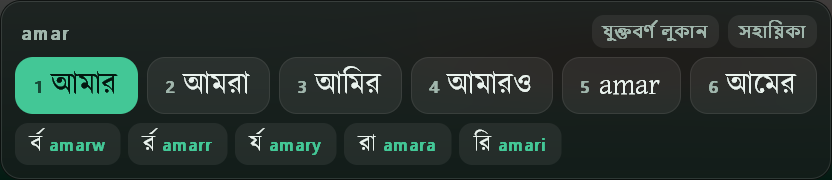
amar লেখার সময় পপ-আপ: ওপরে আপনার রোমান লেখা, মাঝে পরামর্শ, নিচে সংকেত।The popup while typing amar: your Roman letters on top, suggestions in the middle, hints below.- পরামর্শের সারি: সবুজটি বাছাই করা, Space চাপলে সেটি বসবে। ইংরেজি শব্দও থাকতে পারে (যেমন amar), দরকার হলে Tab চেপে নিন বা ক্লিক করুন।
- Suggestions: the green one is selected and Space places it. An English word can be on offer too (here amar); take it with Tab or a click.
- সংকেতের সারি: এখন আর কোন অক্ষর লিখলে কোন কার, ফলা বা যুক্তবর্ণ হবে, তা দেখায়। যেমন
amarwলিখলে র্ব। এই সারিতেই আগে আসে চিহ্নের টিপ। - Hints: which vowel sign, fola or conjunct the next letters would make, for example
amarw→ র্ব. Mark tips also appear first in this row. - যুক্তবর্ণ লুকান / দেখান: সংকেতের সারি লুকিয়ে পপ-আপ ছোট করে (ছোট পপ-আপ)। আবার চাপলে ফিরে আসে।
- যুক্তবর্ণ লুকান / দেখান (hide / show conjuncts): hides the hint row for a smaller popup, and brings it back.
- সহায়িকা: স্টুডিওর যুক্তবর্ণ ও চিহ্নের গাইড খোলে।
- সহায়িকা (help): opens Studio’s conjunct and marks guide.
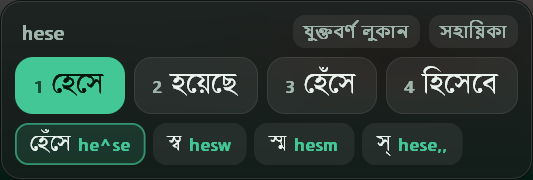
he^se।A tip: হেঁসে is third, so the hints show he^se.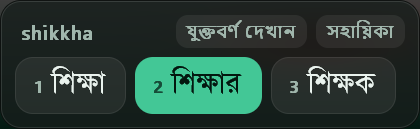
পপ-আপের রং উইন্ডোজের অ্যাপ থিম (হালকা বা গাঢ়) অনুযায়ী বদলায়, আকার বদলায় স্ক্রিনের স্কেলিং অনুযায়ী। পেছনের ঝাপসা কাচের ভাবটি দেখাতে উইন্ডোজের Settings → Personalization → Colors → Transparency effects চালু থাকতে হবে। স্টুডিওর সেটিংসে স্বচ্ছতা ১০০% করলে পপ-আপ পুরো নিরেট হয়।
The popup follows Windows’ app theme (light or dark) and your display scaling. The frosted blur behind it needs Settings → Personalization → Colors → Transparency effects turned on. Set the opacity to 100% in Studio’s settings for a fully solid popup.
Chrome, Word-এর মতো কিছু অ্যাপ কার্সর কোথায় তা জানায় না; সেসব অ্যাপে পপ-আপ মাউসের কাছে দেখায়।
Some apps, such as Chrome and Word, don’t report where the text cursor is; there the popup appears near the mouse instead.
macOS Linux
ম্যাক আর লিনাক্সে পরামর্শ দেখায় সিস্টেমের নিজের পরামর্শ-বারে (macOS-এর candidate window, IBus-এর lookup table)। বাছাই করা শব্দটি লেখার জায়গায় দাগ দেওয়া অবস্থায় দেখা যায়; Space বসায়, Tab পরেরটিতে যায়। এর চেহারা সিস্টেমের থিম অনুযায়ী হয়, তাই স্টুডিওর স্বচ্ছতা বা ছোট পপ-আপের সেটিং এখানে প্রযোজ্য নয়।
On a Mac and on Linux, suggestions appear in the system’s own candidate bar (macOS’s candidate window, IBus’s lookup table). The selected word shows underlined where you’re typing; Space places it and Tab moves to the next. It looks the way your system theme makes it, so Studio’s opacity and compact-popup settings don’t apply there.
ইংরেজি শব্দ, স্নিপেট, ইমোজিEnglish words, snippets and emoji#
বাংলার মাঝে একটি ইংরেজি শব্দOne English word in Bangla text
শব্দের আগে / দিন: লিখে Space চাপলে “office” বসে, ভাষা বদলাতে হয় না। আর কোনো শব্দ ভুল করে বাংলা হয়ে গেলে ঠিক পরেই Backspace চাপুন (রোমান অক্ষর ফিরে আসবে) বা Ctrl+Backspace চেপে উল্টে দিন।
Put a / in front: type and Space, and you get “office” without switching language. If a word became Bangla by mistake, press Backspace right after it (your Roman letters come back) or flip it with Ctrl+Backspace.
স্নিপেট: ছোট শর্টকাটে বড় লেখাSnippets: short codes for longer text
একটি ছোট শর্টকাট লিখে Space চাপলে পুরো লেখাটি বসে যায়। কিছু স্নিপেট আগে থেকেই আছে:
Type a short code and press Space, and the whole text is placed. A few come built in:
| লিখুনType | পাবেনYou get |
|---|---|
| আসসালামু আলাইকুম | |
;wsalam | ওয়ালাইকুমুস সালাম |
;namaskar | নমস্কার |
;dhonnobad | অসংখ্য ধন্যবাদ |
;shuvo | শুভকামনা রইল |
;inshaallah | ইনশাআল্লাহ |
;alhamdulillah | আলহামদুলিল্লাহ |
| অমর একুশে ফেব্রুয়ারি | |
;bd | গণপ্রজাতন্ত্রী বাংলাদেশ |
;tk | ৳ |
নিজের স্নিপেট (ঠিকানা, ফোন নম্বর, স্বাক্ষর) যোগ করুন স্টুডিওর সেটিংস → স্নিপেট থেকে। শর্টকাট ; দিয়ে শুরু করলে সাধারণ শব্দের সাথে মিশে যায় না, যেমন ;addr।
Add your own (an address, a phone number, a signature) in Studio’s Settings → Snippets. Starting the code with ;, such as ;addr, keeps it from clashing with real words.
যেকোনো অ্যাপে বেছে নেওয়া লেখা বাংলা করাConvert selected text in any app
উইন্ডোজে যেকোনো অ্যাপে লেখা বেছে নিয়ে (মাউস দিয়ে বা Shift+তীরচিহ্ন) Ctrl+Alt+C চাপুন। একুশে নিজেই বুঝে নেয় লেখাটি কী:
On Windows, select text in any app (with the mouse or Shift+arrows) and press Ctrl+Alt+C. Ekushe works out what the text is:
| বেছে নেওয়া লেখাSelected text | হয়ে যায়Becomes |
|---|---|
Avgvi †mvbvi evsjv (পুরনো বিজয়)(old Bijoy) | আমার সোনার বাংলা |
amar sonar bangla (বাংলিশ)(Banglish) | আমার সোনার বাংলা |
বাংলিশের প্রতিটি শব্দ সেভাবেই বসে যেভাবে Space চাপলে বসত। একুশে কাজটি করে কপি-পেস্ট দিয়ে, তবে আপনার ক্লিপবোর্ডে আগে যা ছিল তা পরে ফিরিয়ে দেয়। বাংলা বা ইংরেজি যেকোনো মোডে কাজ করে, পাসওয়ার্ডের ঘরে করে না। লেখা বেছে না নিলে একটি ছোট বার্তা দেখায়। অনেক লম্বা লেখা (২০,০০০ অক্ষরের বেশি) বা ম্যাক ও লিনাক্সে স্টুডিওর রূপান্তর ব্যবহার করুন।
Each Banglish word is placed the way Space would place it. Ekushe does this by copying and pasting, but it puts back whatever was on your clipboard before. It works in Bangla or English mode, but not in password boxes. With nothing selected, a short message says so. For very long text (over 20,000 characters), or on Mac and Linux, use Studio’s converter.
ম্যাক ও লিনাক্সে বিজয় বা বাংলিশ লেখা বদলাতে স্টুডিওর রূপান্তর ব্যবহার করুন।On Mac and Linux, use Studio’s converter for Bijoy or Banglish text.
ইমোজিEmoji
কিছু শব্দের সাথে মানানসই ইমোজিও পরামর্শে আসে: লিখলে তালিকায় 🇧🇩, bhalobasha লিখলে ❤️, kanna লিখলে 😢। Tab চেপে বা ক্লিক করে নিন।
Some words bring a matching emoji into the suggestions: offers 🇧🇩, bhalobasha ❤️ and kanna 😢. Take it with Tab or a click.
পরের শব্দের পরামর্শNext-word suggestions
একটি শব্দ বসানোর পর একুশে আন্দাজ করে পরের শব্দ কী হতে পারে (যেমন “শুভ”-র পর “সকাল”, “জন্মদিন”)। আপনি যে শব্দগুলো বেছে নেন, একুশে সেগুলো শিখে রাখে, তাই সময়ের সাথে পরামর্শ আপনার লেখার মতো হয়ে ওঠে।
After you place a word, Ekushe guesses what may come next (“সকাল” or “জন্মদিন” after “শুভ”). It also learns the words you pick, so over time the suggestions start to match the way you write.
একুশে স্টুডিওEkushe Studio#
স্টুডিও একুশের সাথে আসা একটি ছোট কাজের জায়গা: লেখার প্যাড, শব্দ এক্স-রে, যুক্তবর্ণের গাইড, বানান পরীক্ষা, বিজয় ⇄ ইউনিকোড রূপান্তর আর সেটিংস। এটি আপনার কম্পিউটারেই চলে, ইন্টারনেট লাগে না।
Studio is a small workspace that comes with Ekushe: a writing pad, a word X-ray, the conjunct guide, a spell checker, a Bijoy ⇄ Unicode converter and the settings. It runs on your own computer; no internet needed.
স্টুডিও খোলাOpening Studio
| Windows | ট্রে আইকনে ডাবল-ক্লিক, অথবা রাইট-ক্লিক করে ✨ একুশে নেক্সট স্টুডিও খুলুন। মেনু থেকে সরাসরি যেকোনো অংশও খোলা যায় (লেখার প্যাড, এক্স-রে, যুক্তবর্ণ, বানান, রূপান্তর, সেটিংস)।Double-click the tray icon, or right-click it and choose ✨ Open Ekushe Next Studio. The menu also opens each part directly (writing pad, X-ray, conjuncts, spelling, converter, settings). |
| macOS | একুশে বেছে নেওয়া অবস্থায় মেনু বারের ইনপুট মেনু → Open Ekushe Studio… (অথবা Settings…)। স্টুডিও ব্রাউজারে খোলে।With Ekushe selected, open the input menu in the menu bar → Open Ekushe Studio… (or Settings…). Studio opens in your browser. |
| Linux | অ্যাপের তালিকা থেকে Ekushe Studio, অথবা একুশে বেছে নেওয়া অবস্থায় IBus মেনু → Open Ekushe Studio / Settings। স্টুডিও ব্রাউজারে খোলে।Ekushe Studio in your applications menu, or with Ekushe selected, the IBus menu → Open Ekushe Studio / Settings. Studio opens in your browser. |
নিরাপত্তার জন্য স্টুডিও প্রতিবার একটি নতুন এককালীন ঠিকানায় খোলে, আর শুধু একুশের নিজের মেনু থেকে খোলা পাতাই আপনার সেটিংস দেখতে বা বদলাতে পারে। তাই পুরনো বুকমার্ক বা ব্রাউজারের ইতিহাস থেকে খুললে স্টুডিও বলবে একুশের মেনু থেকে খুলতে। খোলা স্টুডিও রিলোড করলে কোনো সমস্যা নেই। ম্যাক আর লিনাক্সে ৩০ মিনিট ব্যবহার না হলে স্টুডিও নিজে থেকে বন্ধ হয়; দরকার হলে আবার মেনু থেকে খুলুন।
For safety, Studio opens at a fresh one-time address each time, and only a page opened from Ekushe’s own menu can see or change your settings. So if you open it from an old bookmark or your browser history, Studio asks you to use Ekushe’s menu instead. Reloading an open Studio is fine. On Mac and Linux, Studio closes itself after 30 minutes without use; just open it again from the menu.
লেখার প্যাডWriting pad
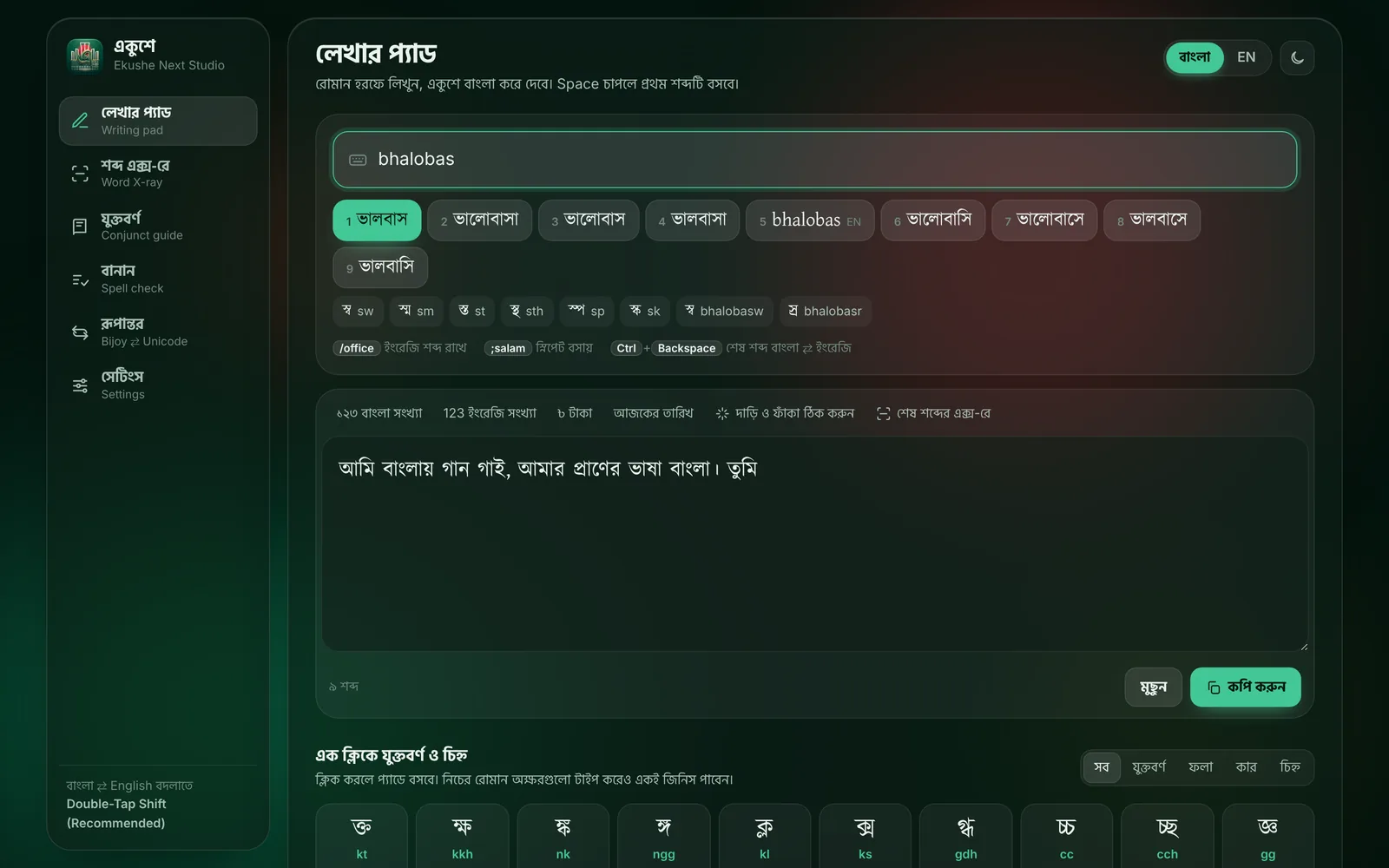
ওপরের বাক্সে রোমান হরফে লিখুন; পরামর্শ থেকে শব্দ বসে নিচের প্যাডে জমা হয়। তারপর কপি করুন চেপে যেকোনো জায়গায় বসান। প্যাডের সরঞ্জাম:
Type in Roman letters in the top box; words from the suggestions collect in the pad below. Then press কপি করুন (copy) and paste anywhere. The pad’s tools:
- ১২৩ বাংলা সংখ্যা / 123 ইংরেজি সংখ্যা: প্যাডের সব সংখ্যা এক ক্লিকে বাংলা বা ইংরেজি করে।
- ১২৩ / 123: turn every number in the pad into Bangla or English digits.
- ৳ টাকা: টাকার চিহ্নসহ অঙ্ক বসায়, যেমন ৳ ১,০০০/-।
- ৳ টাকা: inserts an amount with the taka sign, such as ৳ ১,০০০/-.
- আজকের তারিখ: আজকের তারিখ বাংলায় বসায়।
- আজকের তারিখ: inserts today’s date in Bangla.
- দাড়ি ও ফাঁকা ঠিক করুন: ফুলস্টপকে দাঁড়ি করে আর বাড়তি ফাঁকা সরায়।
- দাড়ি ও ফাঁকা ঠিক করুন: turns full stops into dari (।) and removes extra spaces.
- শেষ শব্দের এক্স-রে: শেষ শব্দটি শব্দ এক্স-রেতে খুলে দেখায়।
- শেষ শব্দের এক্স-রে: opens the last word in the Word X-ray.
নিচে এক ক্লিকে যুক্তবর্ণ ও চিহ্ন: ক্লিক করলে প্যাডে বসে, আর প্রতিটির নিচে লেখা থাকে কোন রোমান অক্ষরে সেটি টাইপ হয়। সব, যুক্তবর্ণ, ফলা, কার আর চিহ্ন অনুযায়ী ছেঁকে দেখা যায়।
Below that, এক ক্লিকে যুক্তবর্ণ ও চিহ্ন (conjuncts and signs in one click): click one to place it, and each shows the Roman letters that type it. Filter by all, conjuncts, folas, vowel signs or marks.
শব্দ এক্স-রেWord X-ray
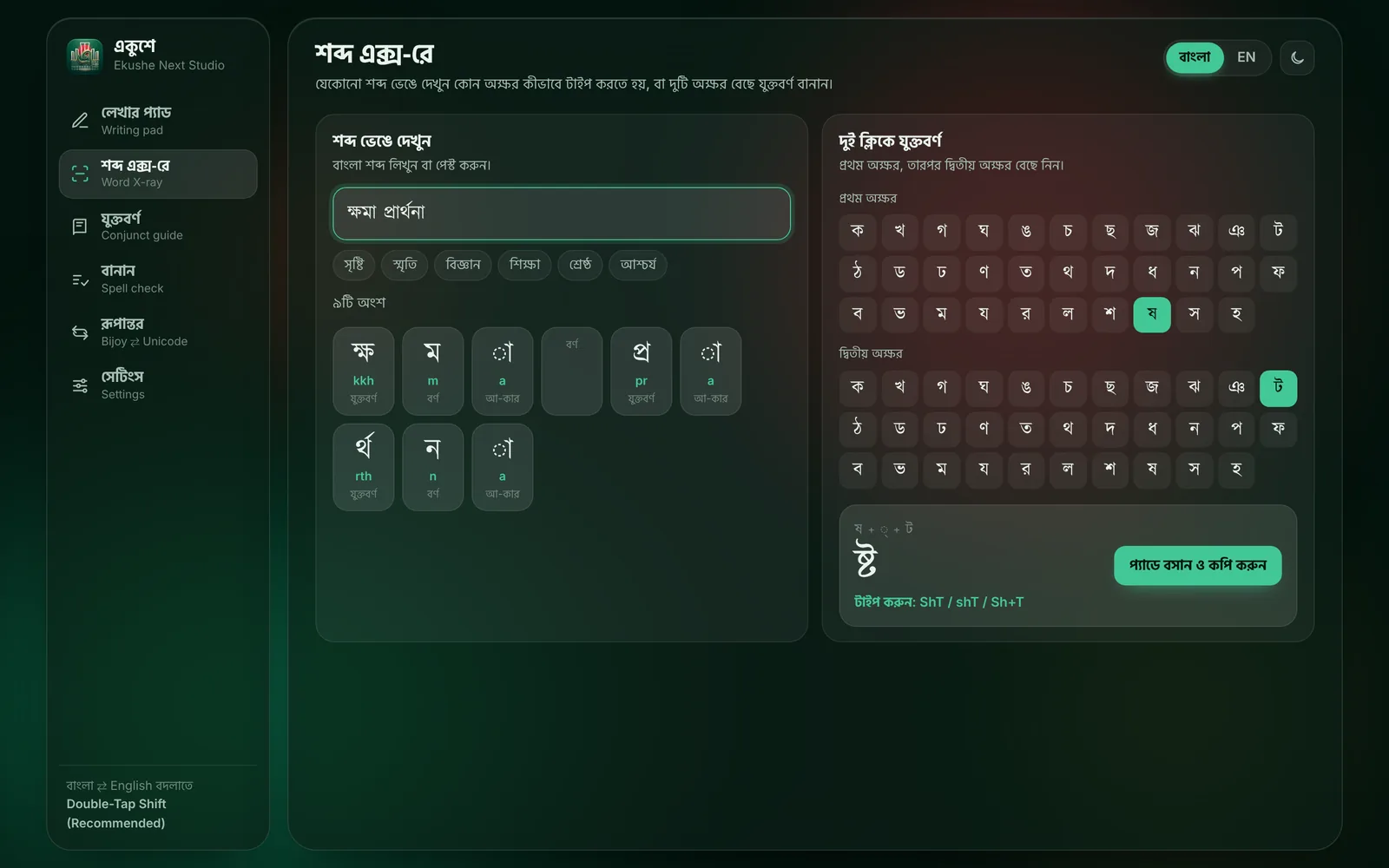
যেকোনো বাংলা শব্দ বসালে এক্স-রে সেটি অক্ষরে অক্ষরে ভেঙে দেখায়, আর প্রতিটি অংশ কীভাবে টাইপ করতে হয়। কোনো শব্দ কীভাবে লিখবেন বুঝতে না পারলে সেটি কোথাও থেকে কপি করে এখানে দিন। দুই ক্লিকে যুক্তবর্ণ-এ প্রথম অক্ষর, তারপর দ্বিতীয় অক্ষর বেছে নিলে যুক্তবর্ণটি আর তার রোমান লেখা দেখায়।
Paste any Bangla word and the X-ray breaks it down letter by letter, with how to type each part. Not sure how to type a word? Copy it from anywhere and drop it here. In দুই ক্লিকে যুক্তবর্ণ (two-click conjuncts), pick a first letter, then a second, and you see the conjunct and its Roman spelling.
যুক্তবর্ণ ও শব্দConjuncts and words
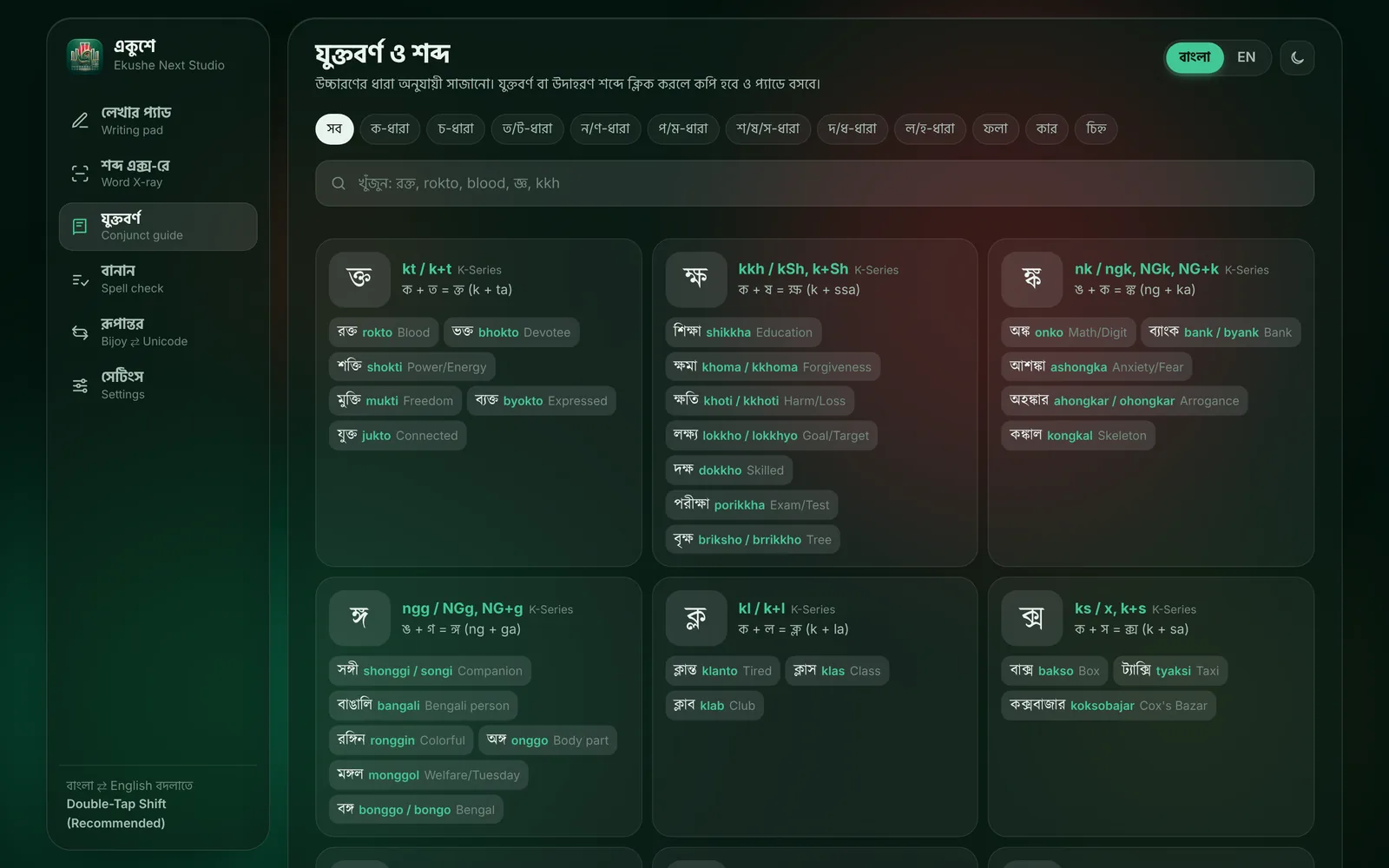
একুশের সব যুক্তবর্ণ, কার আর ফলা, উচ্চারণের ধারা (ক-ধারা, চ-ধারা …) অনুযায়ী সাজানো, প্রতিটির সাথে উদাহরণ শব্দ আর কী চাপতে হয়। ওপরের কার্ডে আছে নির্দিষ্ট বানানের সব চিহ্ন। খোঁজার ঘরে বাংলা বা রোমান যেকোনোটিতে খুঁজুন; কোনোটিতে ক্লিক করলে কপি হয় আর প্যাডে বসে।
Every conjunct, vowel sign and fola, grouped by sound series (the ক series, the চ series …), each with example words and the keys that make it. The card at the top lists all the exact-spelling marks. Search in Bangla or Roman letters; click any item to copy it and place it in the pad.
বানান পরীক্ষাSpell checker
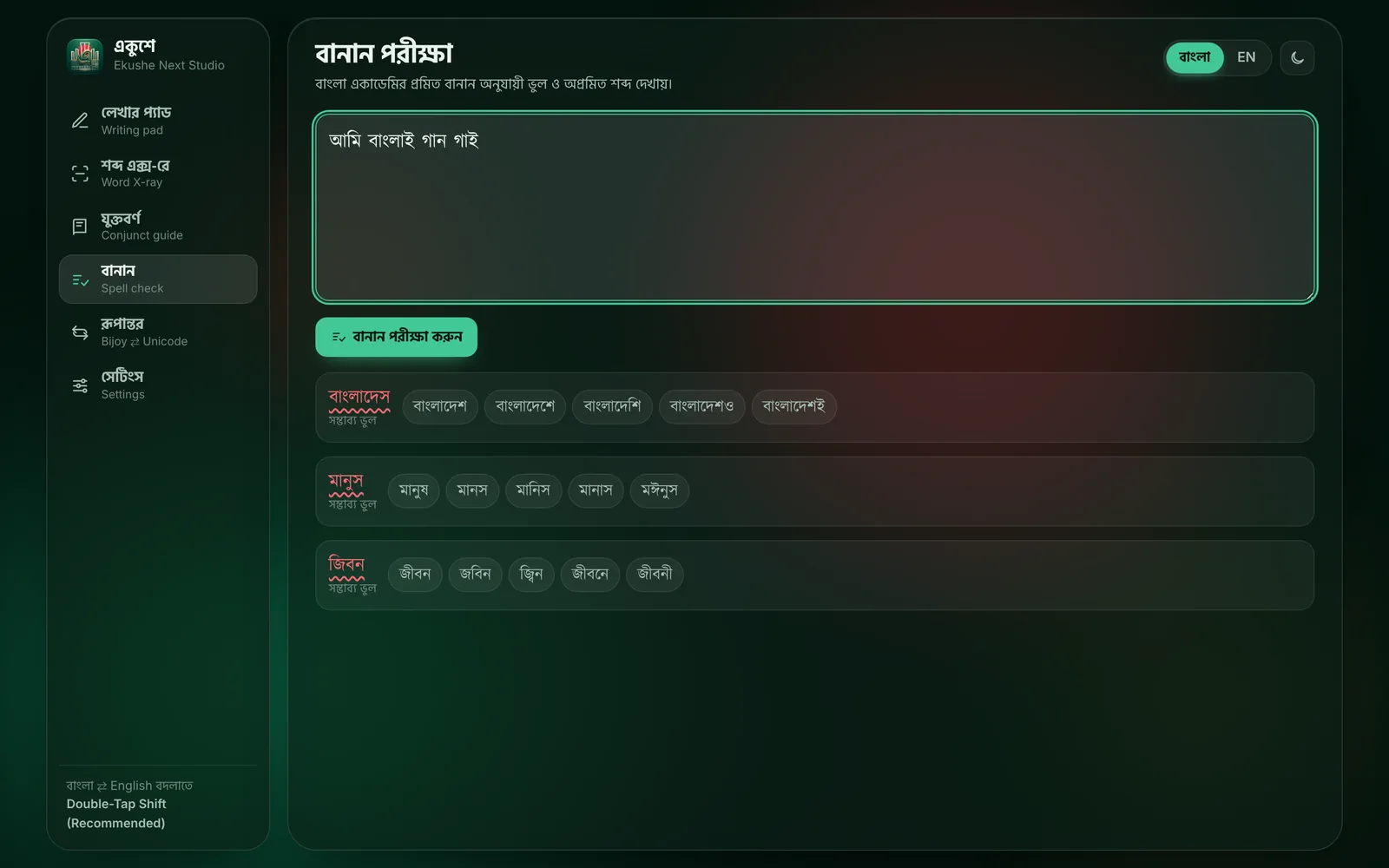
লেখা বসালে বাংলা একাডেমির প্রমিত বানান অনুযায়ী ভুল বা অপ্রমিত শব্দগুলো চিহ্নিত করে, আর সঠিক বানান দেখায়।
Paste your text and it marks misspelled and non-standard words against the Bangla Academy standard, with the right spelling.
রূপান্তরConverter
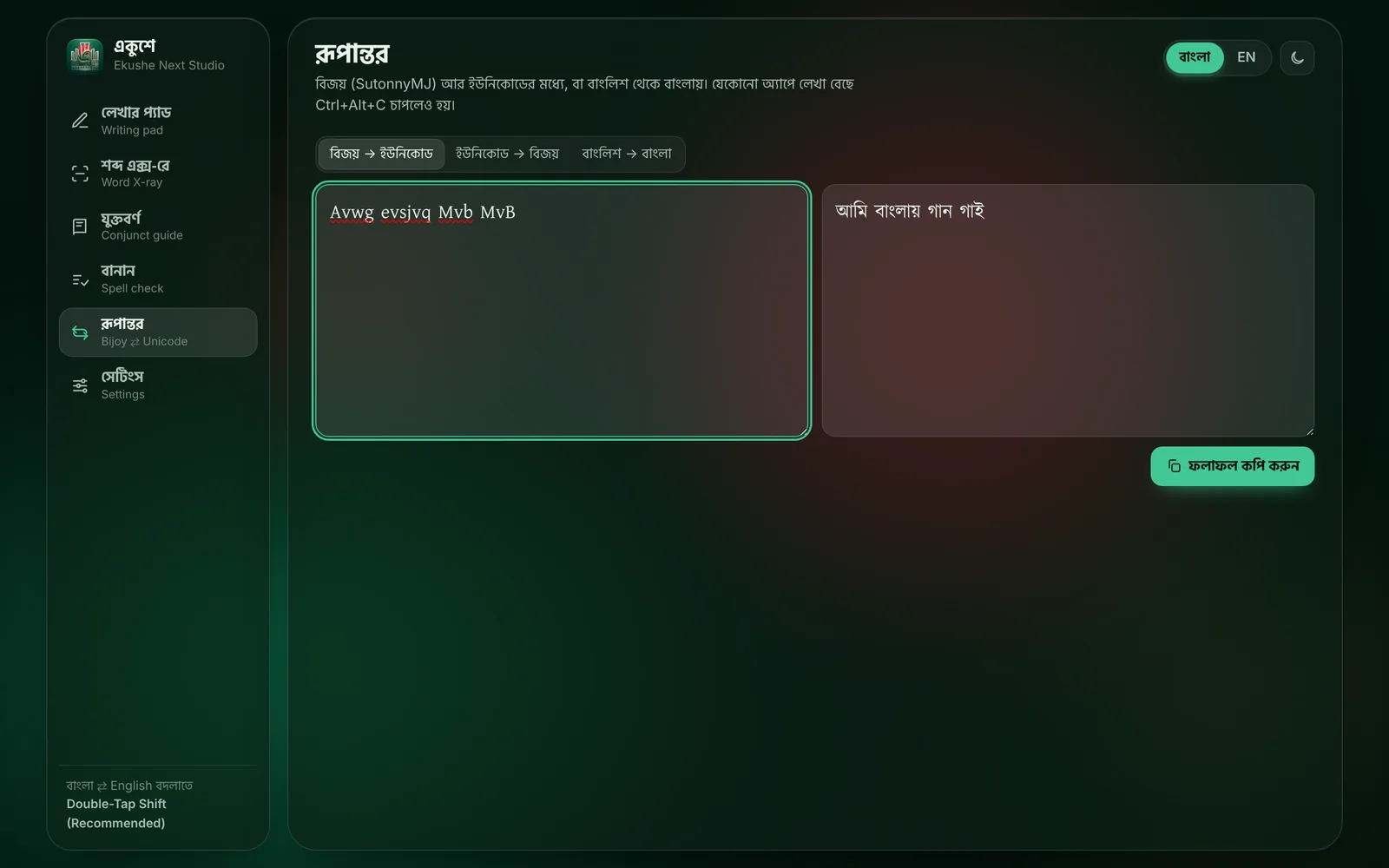
পুরনো বিজয় (SutonnyMJ ফন্টে লেখা) লেখাকে ইউনিকোডে, আর ইউনিকোডকে বিজয়ে বদলায়। বাংলিশে (রোমান হরফে) লেখা পুরো অনুচ্ছেদও একবারে বাংলা করা যায়। ফলাফল কপি করুন চেপে নিয়ে নিন। উইন্ডোজে স্টুডিও না খুলেও যেকোনো অ্যাপে লেখা বেছে Ctrl+Alt+C চাপলে একই কাজ হয়।
Turns old Bijoy text (typed with SutonnyMJ-style fonts) into Unicode, and Unicode into Bijoy. It can also turn a whole paragraph of Banglish (Bangla in Roman letters) into Bangla at once. Press ফলাফল কপি করুন (copy result) to take it. On Windows you can skip Studio: select text in any app and press Ctrl+Alt+C.
সেটিংসSettings#
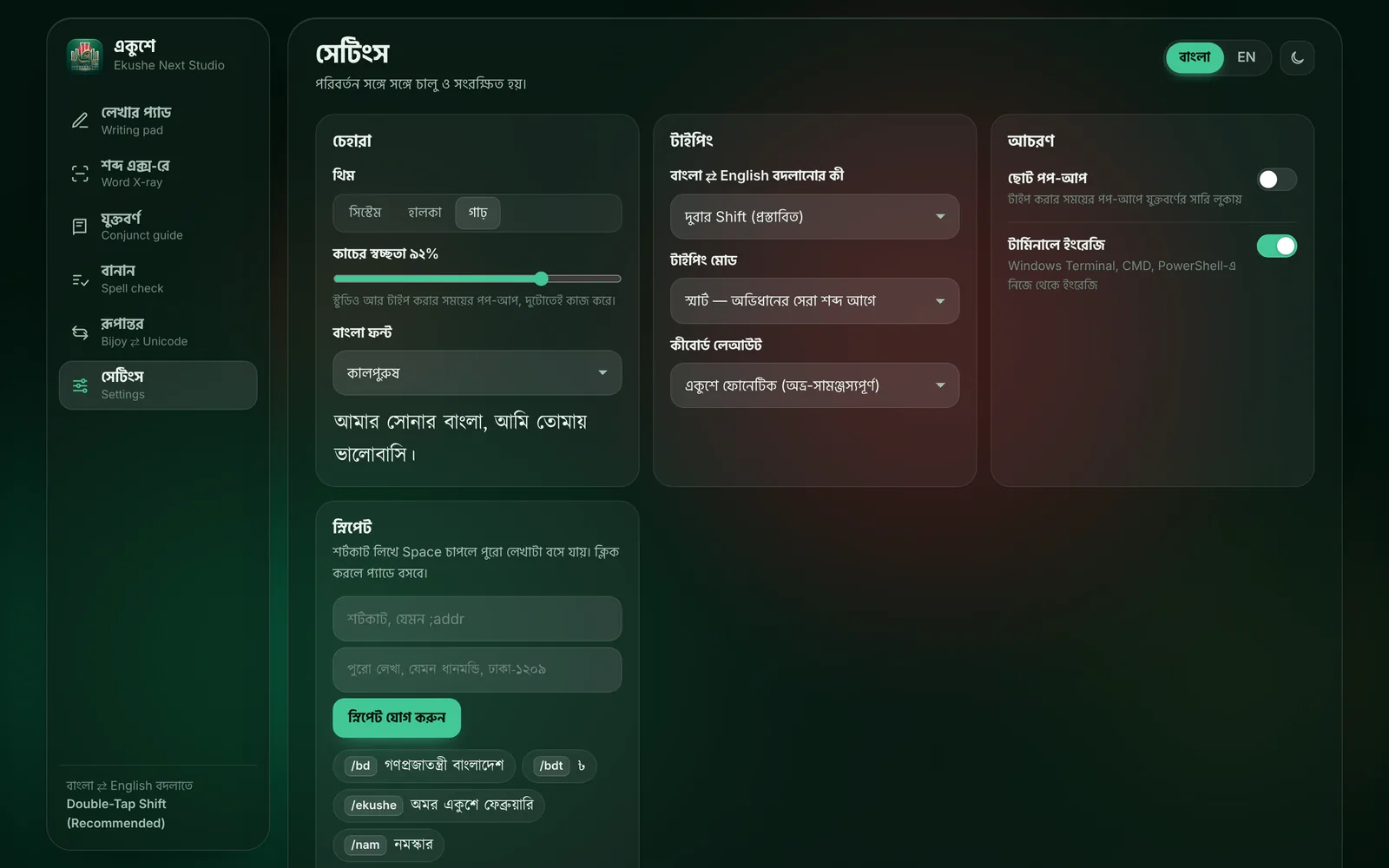
সব সেটিং আছে স্টুডিওর সেটিংস অংশে। কোনো কিছু বদলালেই সঙ্গে সঙ্গে সংরক্ষিত হয়, আলাদা “Save” চাপতে হয় না।
All settings live in Studio’s সেটিংস (Settings) tab. Every change is saved straight away; there’s no Save button to press.
চেহারাAppearance
| সেটিংSetting | বিকল্প (শুরুতে যা থাকে)Options (default) | কী করেWhat it does |
|---|---|---|
| থিমTheme | সিস্টেম, হালকা, গাঢ়System, light, dark | স্টুডিওর রং।Studio’s colours. |
| কাচের স্বচ্ছতাGlass opacity | 70–100% (৯২%)(92%) | স্টুডিও আর উইন্ডোজের পপ-আপ কতটা স্বচ্ছ। ১০০% মানে নিরেট।How see-through Studio and the Windows popup are. 100% is solid. |
| বাংলা ফন্টBangla font | কালপুরুষ, সোলাইমানলিপি, সিয়াম রূপালী, হিন্দ শিলিগুড়িKalpurush, SolaimanLipi, Siyam Rupali, Hind Siliguri | স্টুডিওতে বাংলা লেখা কোন ফন্টে দেখাবে। উইন্ডোজের ইনস্টলার এই ফন্টগুলো কম্পিউটারেও যোগ করে, তাই অন্য অ্যাপেও এগুলো বেছে নিতে পারবেন।The font Studio shows Bangla in. On Windows the installer also adds these fonts to the computer, so you can pick them in other apps too. |
টাইপিংTyping
| সেটিংSetting | বিকল্প (শুরুতে যা থাকে)Options (default) | কী করেWhat it does |
|---|---|---|
| বাংলা ⇄ English বদলানোর কীSwitch key | দুবার Shift, Ctrl+Space, F12, Ctrl+Alt+BDouble-tap Shift, Ctrl+Space, F12, Ctrl+Alt+B | ভাষা বদলানোর কী। Ctrl+Space, F12 আর Ctrl+Alt+B শুধু উইন্ডোজে কাজ করে; ম্যাক আর লিনাক্সে এগুলো বেছে নিলে দুবার Shift বন্ধ হয়ে যায়।The key that switches language. Ctrl+Space, F12 and Ctrl+Alt+B work on Windows only; on Mac and Linux choosing one of them just turns double-tap Shift off. |
| টাইপিং মোডTyping mode | স্মার্ট, ফোনেটিক আগে, শুধু ফোনেটিকSmart, phonetic first, phonetic only | স্মার্ট: অভিধানের সেরা শব্দ আগে আসে, কাছাকাছি বানান থেকেও। ফোনেটিক আগে: যা টাইপ করলেন ঠিক সেই অক্ষরগুলো আগে, যদি সেটা প্রচলিত শব্দ হয়; নইলে অভিধানের পছন্দ। শুধু ফোনেটিক: কোনো পপ-আপ বা পরামর্শ নেই, প্রতিটি অক্ষর নিয়ম অনুযায়ী সরাসরি বসে, পুরনো অভ্রের মতো।Smart: the dictionary’s best word comes first, even from a near spelling. Phonetic first: the exact letters you typed come first when they form a common word; otherwise the dictionary’s choice. Phonetic only: no popup or suggestions; every letter goes in by the rules, like classic Avro. |
| কিবোর্ড লেআউটKeyboard layout | একুশে ফোনেটিক, প্রভাত, জাতীয়, বর্ণনা, মুনীর অপটিমাEkushe Phonetic, Probhat, National (Jatiya), Bornona, Munir Optima | ফোনেটিক বা কোনো নির্দিষ্ট বাংলা লেআউট। দেখুন অন্যান্য লেআউট।Phonetic, or a fixed Bangla layout. See Other layouts. |
উইন্ডোজে লেআউট, টাইপিং মোড আর বদলানোর কী ট্রে আইকনের রাইট-ক্লিক মেনু থেকেও বদলানো যায়।
On Windows, the layout, typing mode and switch key can also be changed from the tray icon’s right-click menu.
আচরণBehaviour
| সেটিংSetting | শুরুতেDefault | কী করেWhat it does |
|---|---|---|
| ছোট পপ-আপCompact popup | বন্ধOff | উইন্ডোজের পপ-আপে সংকেতের সারি লুকায়, শুধু পরামর্শ থাকে (চিহ্নের টিপ তবুও দেখায়)। পপ-আপের “যুক্তবর্ণ লুকান” বোতামও একই কাজ করে।Hides the hint row in the Windows popup, leaving just the suggestions (mark tips still show). The popup’s “যুক্তবর্ণ লুকান” button does the same. |
| টার্মিনালে ইংরেজিEnglish in terminals | চালুOn | টার্মিনাল (Windows Terminal, Command Prompt, PowerShell, ম্যাকের Terminal ও iTerm) ইংরেজিতে শুরু হয়; দুবার Shift চাপলে সেখানেও বাংলা লেখা যায়। বন্ধ করলে টার্মিনাল অন্য যেকোনো অ্যাপের মতো আচরণ করে।Terminals (Windows Terminal, Command Prompt, PowerShell, and Terminal and iTerm on a Mac) start in English; double-tap Shift to type Bangla there anyway. Turn it off and terminals behave like any other app. |
স্নিপেটSnippets
- শর্টকাট লিখুনপ্রথম ঘরে, যেমন
;addr। - Type the codeIn the first box, for example
;addr. - পুরো লেখা দিনদ্বিতীয় ঘরে, যেমন “ধানমন্ডি, ঢাকা-১২০৯”।
- Type the full textIn the second box, for example “ধানমন্ডি, ঢাকা-১২০৯”.
- স্নিপেট যোগ করুন চাপুন। এরপর যেকোনো অ্যাপে বাংলা চালু রেখে
;addrলিখে Space চাপলেই পুরো ঠিকানা বসবে। - Click স্নিপেট যোগ করুন (add snippet). From then on, in any app with Bangla on, type
;addrand Space to place the whole address.
একই শর্টকাট দিয়ে আবার যোগ করলে আগের লেখাটি বদলে যায়। স্নিপেট মুছতে কনফিগারেশন ফাইল থেকে লাইনটি সরান।
Adding the same code again replaces its text. To delete a snippet, remove its line from the configuration file.
বদলানো সেটিং কখন কাজ শুরু করেWhen a change takes effect
- Windows: সঙ্গে সঙ্গে।
- Windows: immediately.
- macOS: পরের বার কোনো লেখার ঘরে ক্লিক করলে বা অন্য অ্যাপে গেলে।
- macOS: the next time you click into a text field or switch apps.
- Linux: অন্য কিবোর্ডে গিয়ে আবার একুশেতে ফিরলে (Super+Space দুবার)।
- Linux: after you switch to another keyboard and back to Ekushe (Super+Space twice).
অন্যান্য লেআউটOther layouts#
ফোনেটিক ছাড়াও একুশেতে চারটি নির্দিষ্ট বাংলা লেআউট আছে, যেখানে প্রতিটি কী সব সময় একই বাংলা অক্ষর দেয়, বাংলা ছাপা কিবোর্ডের মতো:
Besides phonetic typing, Ekushe has four fixed Bangla layouts, where each key always gives the same letter, as printed on Bangla keyboards:
প্রভাতProbhat
জনপ্রিয় মুক্ত লেআউট, লিনাক্সে বহুল ব্যবহৃত।
A popular open layout, widely used on Linux.
জাতীয়National (Jatiya)
বাংলাদেশ কম্পিউটার কাউন্সিলের প্রমিত লেআউট।
The standard layout of the Bangladesh Computer Council.
বর্ণনাBornona
অভ্রের সাথে আসা পরিচিত লেআউট।
The familiar layout that came with Avro.
মুনীর অপটিমাMunir Optima
মুনীর চৌধুরীর টাইপরাইটার লেআউটের আধুনিক রূপ।
A modern take on Munier Chowdhury’s typewriter layout.
বেছে নিন স্টুডিওর সেটিংস → কিবোর্ড লেআউট থেকে, বা উইন্ডোজে ট্রে মেনুর লেআউট অংশ থেকে। এই লেআউটে কিছু কাজ একুশে নিজেই সামলায়: কার আগে বা পরে যেভাবেই টাইপ করুন সঠিক জায়গায় বসায়, দুটি স্বরচিহ্ন মিলিয়ে সঠিক রূপ দেয় আর চন্দ্রবিন্দুর জায়গা ঠিক করে। ফোনেটিকে ফিরতে একুশে ফোনেটিক বেছে নিন।
Choose one in Studio’s Settings → Keyboard layout, or on Windows from the layout items in the tray menu. With these layouts Ekushe tidies a few things for you: a vowel sign lands in the right place whether you type it before or after the consonant, two vowel parts combine into the correct form, and the chandrabindu is put where it belongs. Choose Ekushe Phonetic to go back to phonetic typing.
বিজয় লেআউট লাইসেন্সের কারণে নেই। পুরনো বিজয় লেখা ইউনিকোডে বদলাতে স্টুডিওর রূপান্তর ব্যবহার করুন।
The Bijoy layout isn’t included, for licensing reasons. To turn old Bijoy text into Unicode, use Studio’s converter.
উন্নত কনফিগারেশনAdvanced configuration#
স্টুডিওতে যা বদলান, তা লেখা থাকে config.toml নামের একটি সাধারণ লেখার ফাইলে। কিছু সেটিং শুধু এই ফাইলেই আছে। ফাইলটি না থাকলে স্টুডিওতে যেকোনো একটি সেটিং একবার বদলান, ফাইলটি তৈরি হয়ে যাবে।
Whatever you change in Studio is written to a plain text file called config.toml. A few settings exist only there. If the file isn’t there yet, change any setting in Studio once and it will be created.
| ফোল্ডারFolder | পরিবর্তনের পরAfter editing | |
|---|---|---|
| Windows | %APPDATA%\Ekushe ফাইল এক্সপ্লোরারের ঠিকানা-ঘরে লিখে Enter চাপুনtype it in File Explorer’s address bar and press Enter | ট্রে মেনু → প্রস্থান করুন, তারপর Start Menu থেকে Ekushe Next Bangla Keyboard আবার চালু করুন।Tray menu → Exit, then start Ekushe Next Bangla Keyboard again from the Start Menu. |
| macOS | ~/Library/Application Support/Ekushe | অন্য কোনো লেখার ঘরে বা অ্যাপে যান।Click into another text field or app. |
| Linux | ~/.config/Ekushe | অন্য কিবোর্ডে গিয়ে আবার একুশেতে ফিরুন।Switch to another keyboard and back to Ekushe. |
একই ফোল্ডারে থাকে learned.tsv, যেখানে একুশে আপনার বেছে নেওয়া শব্দগুলো মনে রাখে। একটি নমুনা config.toml, ব্যাখ্যাসহ (# দিয়ে শুরু হওয়া লাইন টীকা):
The same folder holds learned.tsv, where Ekushe remembers the words you pick. Here is a sample config.toml with explanations (lines starting with # are comments):
# Bangla ⇄ English switch: DoubleTapShift, CtrlSpace, F12 or CtrlAltB
switch_hotkey = "DoubleTapShift"
# Windows: convert the selected text in any app (Ctrl, Alt or Win plus a letter, digit or F-key)
convert_selection_hotkey = "Ctrl+Alt+C"
# AvroPhonetic, Probhat, NationalJatiya, Bornona or MunirOptima
active_layout = "AvroPhonetic"
# Smart, PhoneticFirst or PhoneticOnly
typing_mode = "Smart"
# Digits come out as ০-৯ in Bangla
bangla_digits = true
# The hint row (vowel signs, folas, conjuncts) in the popup
show_sign_and_conjunct_hints = true
# Hide the hint row (Windows popup)
compact_popup = false
# Terminals start in English
auto_english_in_terminals = true
# Offer emoji for some words (bangladesh → 🇧🇩)
enable_emoji_suggestions = true
# Suggest the next word after one is placed
enable_next_word_prediction = true
# How many suggestions to show, 1 to 9
max_candidates = 9
# Backspace right after a word brings back the Roman letters
backspace_undo = true

# Fixed layouts only: tidy vowel signs and chandrabindu
[layout_automation]
auto_prebase_kar_reorder = true
auto_vowel_forming = true
auto_chandrabindu_fix = true

# The language an app starts in. Windows: the program file name.
# Mac: the app's bundle ID, in small letters.
[per_app_defaults]
"code.exe" = "English"
"winword.exe" = "Bangla"

# Your own spellings: what you type = what you get
[phonetic_overrides]
ekn = "এখন"

# Your snippets: type the code, then Space
[custom_snippets]
";addr" = "ধানমন্ডি, ঢাকা-১২০৯"per_app_defaults: কোন অ্যাপ কোন ভাষায় শুরু হবে। উইন্ডোজে অ্যাপের ফাইলের নাম (Task Manager → Details-এ দেখা যায়), ম্যাকে অ্যাপের bundle ID (যেমনcom.apple.terminal)। লিনাক্সে এই সেটিং কাজ করে না।per_app_defaults: which language an app starts in. On Windows, the program’s file name (see Task Manager → Details); on a Mac, the app’s bundle ID (such ascom.apple.terminal). This setting has no effect on Linux.phonetic_overrides: নিজের সংক্ষেপ বা অভিধানে নেই এমন শব্দ, ঠিক যেভাবে চান।phonetic_overrides: your own short forms, or words the dictionary doesn’t have, exactly as you want them.- উইন্ডোজে বাংলা চালু থাকলে সংখ্যা সব সময় বাংলায় আসে (ইংরেজি সংখ্যা পপ-আপের দ্বিতীয় পরামর্শে)।
- On Windows, digits always come out in Bangla while Bangla is on (English digits are the second suggestion).
ফাইলটি UTF-8 হিসেবে সংরক্ষণ করুন (Notepad, TextEdit-এর “plain text”, gedit সবই তা করে)। কোনো লাইন ভুল লিখলে একুশে পুরো ফাইল উপেক্ষা করে শুরুর সেটিং নিতে পারে; তখন শেষ পরিবর্তনটি ঠিক করুন।
Save the file as UTF-8 (Notepad, TextEdit in plain-text mode and gedit all do). If a line is malformed, Ekushe may ignore the file and use the defaults; fix your last change if that happens.
গোপনীয়তা ও পাসওয়ার্ডPrivacy and password boxes#
- কিছুই বাইরে যায় না। একুশে ইন্টারনেটে কিছু পাঠায় না; অভিধান, পরামর্শ, বানান পরীক্ষা সব আপনার কম্পিউটারেই চলে। স্টুডিও চলে শুধু আপনার কম্পিউটারের ভেতরের ঠিকানায় (127.0.0.1), এককালীন কোড দিয়ে।
- Nothing leaves your computer. Ekushe sends nothing over the internet; the dictionary, suggestions and spell check all run locally. Studio runs only at your computer’s internal address (127.0.0.1), behind a one-time code.
- পাসওয়ার্ডের ঘরে একুশে সরে দাঁড়ায়। পাসওয়ার্ড বা PIN-এর ঘরে সাধারণ অক্ষর বসে: কোনো বাংলা রূপান্তর নেই, পপ-আপ নেই, কিছু মনে রাখা হয় না।
- Ekushe steps aside in password boxes. In a password or PIN field, plain characters are typed: no Bangla conversion, no popup, nothing remembered.
- পাসওয়ার্ডের মতো দেখতে লেখা মনে রাখা হয় না, যেকোনো ঘরে: অক্ষর আর সংখ্যা মেশানো (
abc123),@ # $ %-এর মতো চিহ্ন, বা খুব লম্বা টানা লেখা। সাধারণ শব্দ আর একুশের চিহ্ন (,,^rr…) আগের মতোই শেখা হয়। - Nothing that looks like a password is learned, in any field: letters mixed with digits (
abc123), symbols such as@ # $ %, or very long unbroken strings. Ordinary words and Ekushe’s marks (,,^rr…) are learned as before.
| পাসওয়ার্ডের ঘর কীভাবে চেনেHow password boxes are recognised | |
|---|---|
| Windows | সাধারণ উইন্ডোজ পাসওয়ার্ড বক্স সরাসরি, আর Chrome, Edge, Firefox, Electron অ্যাপ ও Store অ্যাপের পাসওয়ার্ড ঘর উইন্ডোজের অ্যাক্সেসিবিলিটি দিয়ে। ব্রাউজারে ঘরে ক্লিক করার এক মুহূর্ত পরে চেনে; সাথে সাথে টাইপ করলেও সাধারণত কাজ করে। কখনো পাসওয়ার্ডে বাংলা দেখলে দুবার Shift চেপে ইংরেজিতে গিয়ে আবার লিখুন।Classic Windows password boxes directly, and password fields in Chrome, Edge, Firefox, Electron apps and Store apps through Windows accessibility. In browsers it takes a moment after you click into the field; typing straight away usually works. If you ever see Bangla in a password box, double-tap Shift for English and type it again. |
| macOS | macOS নিজেই পাসওয়ার্ডের ঘর থেকে সব কিবোর্ড ইনপুট মেথড সরিয়ে রাখে।macOS itself keeps input methods out of password fields. |
| Linux | ঘরটি নিজেকে পাসওয়ার্ড বা PIN, অথবা “private” বলে জানালে (GTK, Qt আর ব্রাউজার তা করে)।When the field says it is a password or PIN field, or marks itself “private” (GTK, Qt and browsers do). |
শেখা শব্দ মুছে নতুন করে শুরু করতে চাইলে একুশে বন্ধ রেখে সেটিংস ফোল্ডারের learned.tsv ফাইলটি মুছে দিন। ম্যাক আর লিনাক্সে সেটিংস ও শেখা শব্দের ফাইল শুধু আপনার নিজের অ্যাকাউন্ট পড়তে পারে।
To forget the learned words and start fresh, close Ekushe and delete learned.tsv from the settings folder. On Mac and Linux, the settings and learned-word files are readable only by your own account.
আপডেট ও আনইনস্টলUpdate and uninstall#
একুশে নিজে থেকে আপডেট খোঁজে না। নতুন সংস্করণ এলে এই সাইটের ডাউনলোড অংশে পাবেন; আপনার সেটিংস, স্নিপেট আর শেখা শব্দ আপডেটের পরেও থেকে যায়।
Ekushe doesn’t check for updates by itself. New versions appear in this site’s download section; your settings, snippets and learned words stay through updates.
Windows
আপডেটUpdate
নতুন Ekushe-Setup.exe চালান। এটি চালু থাকা পুরনো একুশে বন্ধ করে নতুনটি বসিয়ে দেয়। পোর্টেবল ব্যবহার করলে পুরনো Ekushe-Portable.exe বন্ধ করে নতুন ফাইলটি দিয়ে বদলে দিন।
Run the new Ekushe-Setup.exe. It stops the running Ekushe and puts the new one in its place. With the portable version, exit the old Ekushe-Portable.exe and replace it with the new file.
আনইনস্টলUninstall
Settings → Apps → Installed apps খুলুন, Ekushe Next Bangla Keyboard-এর পাশে ⋯ → Uninstall চাপুন। সেটিংসও মুছতে চাইলে এরপর %APPDATA%\Ekushe ফোল্ডারটি মুছুন।
Open Settings → Apps → Installed apps and choose ⋯ → Uninstall next to Ekushe Next Bangla Keyboard. To remove your settings too, delete the %APPDATA%\Ekushe folder afterwards.
macOS
আপডেটUpdate
নতুন Ekushe-macOS.pkg ইনস্টল করুন (ইনস্টলের মতোই)। পুরনো সংস্করণ চলতে থাকলে একবার লগ আউট করে আবার ঢুকুন।
Install the new Ekushe-macOS.pkg (same as installing). If the old version keeps running, log out and back in once.
আনইনস্টলUninstall
- ইনপুট সোর্স থেকে সরানSystem Settings → Keyboard → Text Input → Edit…-এ Ekushe Bangla বেছে − চাপুন।
- Remove the input sourceIn System Settings → Keyboard → Text Input → Edit…, select Ekushe Bangla and click −.
- অ্যাপটি মুছুন/Library/Input Methods/Ekushe.app (.pkg দিয়ে ইনস্টল করলে) বা ~/Library/Input Methods/Ekushe.app (.zip দিয়ে) ট্র্যাশে ফেলুন, তারপর লগ আউট করে আবার ঢুকুন।
- Delete the appMove /Library/Input Methods/Ekushe.app (installed from the .pkg) or ~/Library/Input Methods/Ekushe.app (from the .zip) to the Trash, then log out and back in.
- সেটিংস মুছুন (চাইলে)~/Library/Application Support/Ekushe ফোল্ডারটি মুছুন।
- Remove settings (optional)Delete the ~/Library/Application Support/Ekushe folder.
Linux
আপডেটUpdate
নতুন প্যাকেজ ইনস্টলের একই কমান্ডে ইনস্টল করুন (apt বা dnf পুরনোটি বদলে দেয়), তারপর ibus restart। AppImage হলে নতুন ফাইল দিয়ে আবার --install-keyboard চালান।
Install the new package with the same command (apt or dnf replaces the old one), then run ibus restart. With the AppImage, run --install-keyboard again from the new file.
আনইনস্টলUninstall
Ubuntu, Debian, Mint, Pop!_OS
sudo apt remove ekusheFedora, RHEL
sudo dnf remove ekusheAppImage
./Ekushe-*-x86_64.AppImage --uninstall-keyboardতারপর Settings → Keyboard → Input Sources থেকে Ekushe Bangla সরান। সেটিংসও মুছতে চাইলে ~/.config/Ekushe ফোল্ডারটি মুছুন।
Then remove Ekushe Bangla under Settings → Keyboard → Input Sources. To remove your settings too, delete ~/.config/Ekushe.
সমস্যা সমাধানTroubleshooting#
উইন্ডোজ: ট্রে আইকন দেখছি নাWindows: I can’t see the tray icon
ঘড়ির পাশের ^ তীরচিহ্নে দেখুন। সেখানেও না থাকলে একুশে চলছে না: Start Menu থেকে Ekushe Next Bangla Keyboard চালু করুন। প্রতিবার উইন্ডোজ চালুর সময় নিজে থেকে চালু চাইলে Setup আবার চালিয়ে “Auto-Start” বিকল্পটি চালু রাখুন।
Check behind the ^ arrow next to the clock. If it isn’t there either, Ekushe isn’t running: start Ekushe Next Bangla Keyboard from the Start Menu. To have it start with Windows, run Setup again with “Auto-Start” switched on.
উইন্ডোজ: কোনো একটি অ্যাপে বাংলা আসছে নাWindows: Bangla doesn’t work in one app
অ্যাডমিন হিসেবে চালানো অ্যাপে (যেমন “Run as administrator” দিয়ে খোলা টার্মিনাল) উইন্ডোজ সাধারণ অ্যাপকে লিখতে দেয় না; তখন একুশে একটি বার্তা দেখায়: “এই উইন্ডোতে লেখা পাঠানো যায়নি”। অ্যাপটি সাধারণভাবে খুলুন। টার্মিনালে একুশে ইচ্ছা করেই ইংরেজিতে শুরু হয়; সেখানে দুবার Shift চাপুন।
Windows doesn’t let ordinary apps type into apps running as administrator (say, a terminal opened with “Run as administrator”); Ekushe then shows a message saying it couldn’t send text to that window. Open the app normally. Terminals start in English on purpose; double-tap Shift there.
উইন্ডোজ: পপ-আপ ভুল জায়গায় দেখায়Windows: the popup shows up in the wrong place
Chrome, Word-এর মতো কিছু অ্যাপ কার্সরের অবস্থান জানায় না, তাই সেখানে পপ-আপ মাউসের কাছে আসে। লেখায় কোনো সমস্যা হয় না। চাইলে মাউস লেখার কাছে রাখুন, বা ছোট পপ-আপ চালু করুন।
Some apps, such as Chrome and Word, don’t report the cursor position, so the popup appears near the mouse. Typing still works fine. Keep the mouse near your text, or switch on the compact popup.
উইন্ডোজ: ইনস্টল হচ্ছে না বা মাঝপথে থেমে গেলWindows: the installer fails or stops halfway
ব্রাউজার .exe আটকালে Ekushe-Setup.zip নিন। অ্যান্টিভাইরাস আটকালে ফাইলটি অনুমতি দিন (সাইন করা প্রকাশক: A S M Mahbub Afzal Khan)। তারপরও না হলে %TEMP%\ekushe-install.log ফাইলটি জুড়ে GitHub-এ জানান।
If your browser blocks the .exe, get Ekushe-Setup.zip. If antivirus blocks it, allow the file (signed publisher: A S M Mahbub Afzal Khan). If it still fails, report it on GitHub with %TEMP%\ekushe-install.log attached.
ম্যাক: ইনপুট সোর্সের তালিকায় Ekushe Bangla নেইMac: Ekushe Bangla isn’t in the input source list
একবার লগ আউট করে আবার ঢুকুন, তারপর Keyboard → Text Input → Edit… → +-এ Bengali-র নিচে দেখুন। তবুও না পেলে দেখুন /Library/Input Methods-এ Ekushe.app আছে কি না; না থাকলে .pkg আবার চালান।
Log out and back in, then look under Bengali in Keyboard → Text Input → Edit… → +. If it still isn’t there, check that Ekushe.app is in /Library/Input Methods; if not, run the .pkg again.
ম্যাক: “cannot be opened because it is from an unidentified developer”Mac: “cannot be opened because it is from an unidentified developer”
System Settings → Privacy & Security-এ নিচে গিয়ে Open Anyway চাপুন। ইনস্টলারটি এখনো অ্যাপলের নোটারাইজেশন পায়নি, তাই এই ধাপটি একবার লাগে।
Go to System Settings → Privacy & Security, scroll down and click Open Anyway. The installer isn’t notarized by Apple yet, so this step is needed once.
লিনাক্স: Input Sources-এ একুশে দেখাচ্ছে নাLinux: Ekushe doesn’t show up in Input Sources
ibus restart চালান বা লগ আউট করে আবার ঢুকুন। IBus চলছে কি না দেখতে ibus list-engine | grep -i ekushe চালান। কিছু না দেখালে প্যাকেজটি আবার ইনস্টল করুন (AppImage হলে --install-keyboard)। IBus না থাকলে আগে ইনস্টল করুন: sudo apt install ibus বা sudo dnf install ibus।
Run ibus restart, or log out and back in. To check, run ibus list-engine | grep -i ekushe. If nothing shows, reinstall the package (or run the AppImage with --install-keyboard). If IBus itself is missing, install it first: sudo apt install ibus or sudo dnf install ibus.
লিনাক্স: একটি অ্যাপে Backspace দিয়ে ফেরানো কাজ করে নাLinux: Backspace-undo doesn’t work in one app
এর জন্য অ্যাপকে কার্সরের আশেপাশের লেখা জানাতে হয়। GTK আর Qt অ্যাপ তা করে, কিছু টার্মিনাল ও পুরনো অ্যাপ করে না। সেখানে সাধারণ Backspace দিয়ে মুছে আবার লিখুন।
This needs the app to share the text around the cursor. GTK and Qt apps do; some terminals and older apps don’t. There, delete with ordinary Backspace and type the word again.
স্টুডিও বলছে “একুশের মেনু থেকে খুলুন”Studio says to open it from Ekushe’s menu
এটা নিরাপত্তার জন্য: পুরনো বুকমার্ক বা ইতিহাস থেকে খোলা পাতা আপনার সেটিংস দেখতে পারে না। একুশের মেনু (উইন্ডোজে ট্রে আইকন, ম্যাকে ইনপুট মেনু, লিনাক্সে IBus মেনু বা অ্যাপের তালিকা) থেকে আবার খুলুন।
That’s for safety: a page opened from an old bookmark or your history can’t see your settings. Open it again from Ekushe’s menu (the tray icon on Windows, the input menu on a Mac, the IBus menu or applications menu on Linux).
যে বানান চাই সেটা প্রথমে আসছে নাThe spelling I want doesn’t come first
Tab চেপে সেটি বেছে নিন; একুশে মনে রাখবে, পরের বার আগে দেখাবে। চিহ্নযুক্ত শব্দ হলে পপ-আপের টিপ দেখুন, বা চিহ্ন দিয়ে লিখুন (he^se)। ঠিক যা টাইপ করছেন তা-ই আগে চাইলে সেটিংসে টাইপিং মোড ফোনেটিক আগে করুন।
Pick it with Tab; Ekushe remembers and offers it earlier next time. For a word with a mark, follow the popup’s tip or type the mark yourself (he^se). If you want the letters you typed to come first, set the typing mode to Phonetic first.
ইংরেজি লিখতে গিয়ে বাংলা চলে আসছেI get Bangla when I meant English
দুবার Shift চেপে ইংরেজিতে যান, অথবা একটি শব্দের জন্য সামনে / দিন। ভুল শব্দটি ঠিক পরেই Ctrl+Backspace (ম্যাকে Control+Delete) চেপে উল্টে দিতে পারেন।
Double-tap Shift for English, or put / in front of a single word. Flip a word that came out wrong with Ctrl+Backspace (Control+Delete on a Mac) right after it.
সমাধান না পেলে GitHub-এ একটি issue খুলুন: কোন কম্পিউটার ও সংস্করণ, কোন অ্যাপে লিখছিলেন আর কী টাইপ করেছিলেন, লিখে দিন।
Still stuck? Open an issue on GitHub and say which computer and version, which app you were typing in, and what you typed.
প্রশ্নোত্তরQuestions#
একুশে নেক্সট কি সত্যিই ফ্রি?Is Ekushe Next really free?
হ্যাঁ। কোনো বিজ্ঞাপন, লুকানো খরচ বা প্রিমিয়াম সংস্করণ নেই। কোড MPL-2.0 আর অভিধান CC BY-SA 4.0 লাইসেন্সে খোলা।
Yes. No ads, hidden costs or premium edition. The code is MPL-2.0 and the dictionary CC BY-SA 4.0.
অভ্র আর একুশে একসাথে রাখা যায়?Can I keep Avro installed alongside?
যায়, তবে একসাথে দুটি চালু রাখবেন না; দুটোই একই কী ধরতে চায়। উইন্ডোজে একটি ব্যবহারের সময় অন্যটি বন্ধ রাখুন। ফোনেটিক নিয়ম একই, তাই অভ্যাস বদলাতে হয় না।
Yes, but don’t run both at once; they both want the same keys. On Windows, exit one while you use the other. The phonetic rules are the same, so your habits carry over.
ইন্টারনেট ছাড়া চলবে?Does it work offline?
হ্যাঁ, পুরোপুরি। অভিধানসহ সবকিছু অ্যাপের ভেতরেই আছে।
Yes, completely. Everything, the dictionary included, is inside the app.
অ্যান্ড্রয়েড বা আইফোনে পাওয়া যাবে?Is there an Android or iPhone version?
এখনো না। একুশে নেক্সট আপাতত উইন্ডোজ, ম্যাক আর লিনাক্সের জন্য।
Not yet. For now Ekushe Next is for Windows, Mac and Linux.
অফিসের কম্পিউটারে অ্যাডমিন অধিকার নেই, ব্যবহার করতে পারব?I have no admin rights on my work computer. Can I use it?
উইন্ডোজে হ্যাঁ: Setup শুধু আপনার অ্যাকাউন্টে ইনস্টল করে, আর Ekushe-Portable.exe কিছু ইনস্টল না করেই চলে। ম্যাকে .zip দিয়ে নিজের অ্যাকাউন্টে ইনস্টল করা যায়। লিনাক্সে IBus-এর জন্য একবার পাসওয়ার্ড লাগে।
On Windows, yes: Setup installs for your account only, and Ekushe-Portable.exe runs without installing anything. On a Mac, the .zip installs into your own account. On Linux, IBus needs your password once.